BGRABitmap tutorial 12/fr
Deutsch · English · Español · Français
Ce tutoriel montre comment utiliser les fonctions texte par défaut. Pour les fonctions avancées, voir les moteurs de rendu.
Texte simple
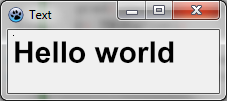
Vous pouvez dessiner un texte simple comme cela :
procedure TForm1.FormPaint(Sender: TObject);
var
  image: TBGRABitmap;
  c: TBGRAPixel;
begin
  image := TBGRABitmap.Create(ClientWidth,ClientHeight, ColorToBGRA(ColorToRGB(clBtnFace)) );
  c := ColorToBGRA(ColorToRGB(clBtnText)); //retrieve default text color

  image.FontHeight := 30;
  image.FontAntialias := true;
  image.FontStyle := [fsBold];
  image.TextOut(ClientWidth-5,5,'Hello world',c,);
  image.SetPixel(5,5,c);

  image.Draw(Canvas,0,0,True);
  image.free;
end;
Ici, la taille de police est de 30 pixels, avec anticrénelage. Utiliser l'anticrénelage pour le texte est plus lent mais plus joli.
Le coin en haut à gauche du texte est aux coordonnées (5,5). Cette origine est montrée avec un SetPixel.
Utiliser l'alignement
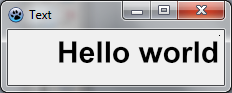
Remplacez les TextOut et SetPixel par :
  image.TextOut(ClientWidth-5,5,'Hello world',c,taRightJustify);
  image.SetPixel(ClientWidth-5,5,c);
Maintenant, l'origine est sur le côté droit de la fenêtre, et le texte est aligné sur la droite.
Rotation de texte
Il est aussi facile de dessiner du texte en rotation. Pour cela, utilisez TextOutAngle ou bien la propriété FontOrientation :
  image.TextOutAngle(30,5,-450,'Hello world',c, taLeftJustify);
  image.SetPixel(30,5,c);
L'angle est en dixièmes de degrés et les valeurs positives sont dans le sens inverse des aiguilles d'une montre. Ceci est une convention pour être compatible avec la propriété Orientation de l'objet Font du canevas standard.
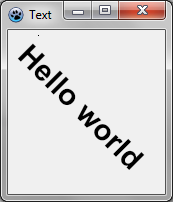
Remarquez à présent où est l'origine du texte (le pixel ajouté).
Texte avec retour à la ligne
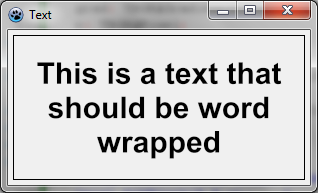
Il y a une version facile à utiliser de TextRect :
  image.TextRect(rect(5,5,ClientWidth-5,ClientHeight-5),'This is a text that should be word wrapped',taCenter,tlCenter,c);
  image.Rectangle(rect(5,5,ClientWidth-5,ClientHeight-5),c,dmSet);
Les paramètres sont :
- le rectangle englobant (il y a un clipping) ;
- le texte ;
- l'alignement horizontal ;
- l'alignement vertical ;
- la couleur.
Texte avec une ombre
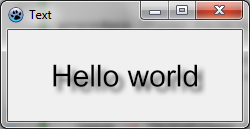
Vous pouvez dessiner un texte avec une ombre floue avec TextShadow de l'unité BGRAGradients :
var
  image,txt: TBGRABitmap;
  grad: TBGRAGradientScanner;
  c: TBGRAPixel;
begin
  image := TBGRABitmap.Create(ClientWidth,ClientHeight, ColorToBGRA(ColorToRGB(clBtnFace)) );
  c := ColorToBGRA(ColorToRGB(clBtnText));

  txt := TextShadow(ClientWidth,ClientHeight,'Hello world',30,c,BGRABlack,5,5,5);
  image.PutImage(0,0,txt,dmDrawWithTransparency);
  txt.Free;

  image.Draw(Canvas,0,0,True);
  image.free;
end;
La procédure TextShadow crée une image qui contient le texte avec une ombre. Les paramètres sont :
- la taille de l'image ;
- le texte ;
- la hauteur de la police ;
- la couleur ;
- la couleur de l'ombre ;
- le décalage et le rayon de flou de l'ombre.
N'oubliez pas de libérer l'image après utilisation.
Texte avec dégradé
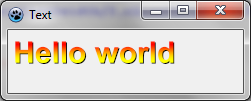
Comme les autres fonctions, vous pouvez passer en paramètre un dégradé ou une texture pour remplir le texte. Voici un exemple :
uses BGRAGradientScanner;

var
  image: TBGRABitmap;
  grad: TBGRAGradientScanner;
begin
  image := TBGRABitmap.Create(ClientWidth,ClientHeight, ColorToBGRA(ColorToRGB(clBtnFace)) );

  grad := TBGRAGradientScanner.Create(BGRA(255,255,0),BGRA(255,0,0),gtLinear,PointF(0,0),PointF(0,35),True,True);
  image.FontHeight := 30;
  image.FontAntialias := true;
  image.FontStyle := [fsBold];
  image.TextOut(6,6,'Hello world',BGRABlack);  //draw a black border
  image.TextOut(5,5,'Hello world',grad);       //draw gradient text
  grad.free;

  image.Draw(Canvas,0,0,True);
  image.free;
end;
En premier lieu, un dégradé sinusoïdal horizontal est créé, de couleurs jaune et rouge. Il est ensuite utilisé comme texture.
Tutoriel précédent (combiner les transformations)
From the Free Pascal wiki, page "BGRABitmap tutorial 12/fr", as it stood on 2020-02-09 after a change by Trev, out of the wiki's dump of 2024-05-26. Copyright stays with the author who wrote it, according to the old wiki's Licensing page. If you have concerns about this material, message the admin.