TFPCustomBrush
TFPCustomBrush is a fundamental property of TFPCustomCanvas and defines how a geometric shape is filled in fcl-image.
Properties
Canvas: points to theTFPCustomCanvason which the brush operates. The property is inherited from the ancestorTFPCanvasHelper.FPColor: specifies the basic color (typeTFPColor) used to fill the shape (inherited from ancestorTFPCanvasHelper).Style: an enumeration of typeTFPBrushStylewhich defines the pattern used for filling:bsClear: no filling at all,FPColoris ignored.bsSolid: uniform fill of the shape with theFPColorspecified- The following styles define hatch patterns which are drawn in the
FPColorspecified. The background between the hatch lines is left empty, it can only be filled by drawing the shape withbsSolidbefore.bsHorizontal,bsVertical,bsFDiagonal,bsBDiagonaldefine a single-line hatch pattern.bsCrossandbsDiagCrossdefine a crossed pattern.
bsImage: fills the shape by tiling the picture given in propertyImageon the canvas.bsPattern: uses a custom pattern to fill the shape. The pattern is given by propertyPattern. See below.
Image: specifies the image (typeTFPCustomImage) used whenStyleisbsImage. The alpha channel is respected.Pattern: specifies the custom pattern for filling the shape whenStyleisbsPattern. The pattern is defined as a 32-element array ofLongIntvalues. This sets up a matrix of 32x32 bits. Each one-bit corresponds to a colored pixel. Pixels corresponding to zero-bits are not drawn.
These properties are applied in all subsequent drawing commands.
Note: The advanced styles
bsImageandbsPatternare availabel for non-rectangular shapes only for FPC v3.3.1+
Methods
function CopyBrush: TFPCustomBrush: creates a new brush and copies the current properties to it.
Sample code
Filling a circle with an image pattern (bsImage)
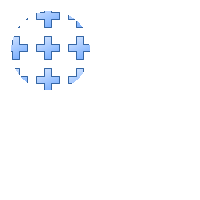
program project1;

uses
  classes, FPImage, FPCanvas, FPImgCanv, FPReadPNG, FPWritePNG;

var
  image: TFPCustomImage;
  pattern: TFPCustomImage;
  canvas: TFPCustomCanvas;
  writer: TFPCustomImageWriter;

begin
  // "pattern.png" is some png image (with alpha channel).
  // Select one from the Lazarus image collection in (lazarus)/images
  pattern := TFPMemoryImage.Create(0, 0);
  pattern.LoadFromFile('pattern.png');

  image := TFPMemoryImage.Create(200,200);
  try
    canvas := TFPImageCanvas.Create(image);
    try
      // Set the pen style
      canvas.Pen.Mode    := pmCopy;
      canvas.Pen.Style   := psSolid;
      canvas.Pen.Width   := 1;
      canvas.Pen.FPColor := colWhite;

      // Set the brush for the circle: the image stored in "pattern"
      canvas.Brush.Style := bsImage;
      canvas.Brush.Image := pattern;
      // Draw a circle filled by "pattern"
      canvas.Ellipse(10, 10, 90, 90);

      // Save to file
      writer := TFPWriterPNG.Create;
      try
        // Activate alpha channel in saved image
        TFPWriterPNG(writer).UseAlpha := true;
        // Write image to file
        image.SaveToFile('DrawTest.png', writer);
      finally
        writer.Free;
      end;

    finally
      canvas.Free;
    end;

  finally
    pattern.Free;
    image.Free;
  end;
end.
Filling a rectangle with a custom pattern (bsPattern)
program project1;

uses
  classes, sysutils,
  FPImage, FPCanvas, FPImgCanv, FPWritePNG;

const
  BIT_PATTERN: TBrushPattern = (
    %11111111111111111111111111111111,      // 1
    %11111111111000000000001111111111,      // 2
    %11111111110000000000000111111111,      // 3
    %11111111100000000000000011111111,      // 4
    %11111111000000000000000001111111,      // 5
    %11111110000000000000000000111111,      // 6
    %11111100000000000000000000011111,      // 7
    %11111000000000000000000000001111,      // 8
    %11110000000000000000000000000111,      // 9
    %11100000000000000000000000000011,      // 10
    %11000000000000001000000000000001,      // 11
    %10000000000000011100000000000000,      // 12
    %10000000000000111110000000000000,      // 13
    %10000000000001111111000000000000,      // 14
    %10000000000011110111100000000000,      // 15
    %10000000000111100011110000000000,      // 16
    %10000000000011110111100000000000,      // 17
    %10000000000001111111000000000000,      // 18
    %10000000000000111110000000000000,      // 19
    %10000000000000011100000000000000,      // 20
    %10000000000000001000000000000000,      // 21
    %10000000000000000000000000000000,      // 22
    %11000000000000000000000000000001,      // 23
    %11100000000000000000000000000011,      // 24
    %11110000000000000000000000000111,      // 25
    %11111000000000000000000000001111,      // 26
    %11111100000000000000000000011111,      // 27
    %11111110000000000000000000111111,      // 28
    %11111111000000000000000001111111,      // 29
    %11111111100000000000000011111111,      // 30
    %11111111110000000000000111111111,      // 31
    %11111111111000000000001111111111       // 32
  );

var
  image: TFPCustomImage;
  canvas: TFPCustomCanvas;
  writer: TFPCustomImageWriter;

begin
  image := TFPMemoryImage.Create(200, 200);
  try
    canvas := TFPImageCanvas.Create(image);
    try
      // Set the pen style
      canvas.Pen.Mode    := pmCopy;
      canvas.Pen.Style   := psSolid;
      canvas.Pen.Width   := 3;
      canvas.Pen.FPColor := colNavy;

      // Set the brush for the rectangle: a bit pattern
      // Unless the shape should be transparent draw the background first
      canvas.Brush.Style := bsSolid;
      canvas.Brush.FPColor := colYellow;
      canvas.Rectangle(10, 110, 190, 190);
      // Now draw the pattern
      canvas.Brush.Style := bsPattern;
      canvas.Brush.FPColor := colBlue;  // Color for every set bit (1) in the pattern
      canvas.Brush.Pattern := BIT_PATTERN;
      canvas.Rectangle(10, 110, 190, 190);

      // Save to file
      writer := TFPWriterPNG.Create;
      try
        // Activate alpha channel in saved image
        TFPWriterPNG(writer).UseAlpha := true;
        // Write image to file
        image.SaveToFile('DrawTest.png', writer);
      finally
        writer.Free;
      end;

    finally
      canvas.Free;
    end;
  finally
    image.Free;
  end;
end.
From the Free Pascal wiki, page "TFPCustomBrush", as it stood on 2023-11-24 after a change by Wp, out of the wiki's dump of 2024-05-26. Copyright stays with the author who wrote it, according to the old wiki's Licensing page. If you have concerns about this material, message the admin.