Macros and Conditionals
Overview
Macros can be used in search paths and file names to let the IDE automatically adapt them to the target platform. Build macros are project/package specific macros. They are not passed to the compiler. A prominent example is the LCLWidgetType, which is defined by the package LCL and allows to choose the widget set (carbon, gtk, qt, win32, wince, ...).
Conditionals are rules allowing to set macros depending on the target platform and/or other macros. For example you can use them to define special linker options when compiling for Mac OS X. They use a pascal like scripting language allowing to define even complex rules.
You can set the build macros via Project / Project Options / Compiler Options / Additions and Overrides.
You can set the conditionals via Project / Project Options / Compiler Options / Other / Conditionals.
Build macros and conditionals exist since Lazarus 0.9.29.
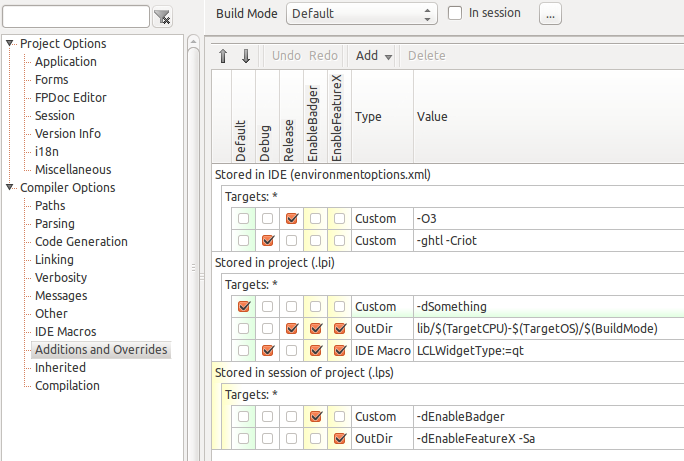
Conditionals
The conditionals use a simple scripting language.
Changing compiler options with conditionals
The conditionals script can define some variables which values are used by the IDE for the compiler options:
- UnitPath: appended to Other Source Files (-Fu). The / and \ characters are automatically converted to the current path delimiter. After adding the search path(s) with a semicolon macros are replaced and relative paths are extended by the package/project directory.
- IncPath: appended to Include Files (-Fi).
- LibraryPath: appended to Libraries (-Fl).
- SrcPath: appended to Other sources (not used by compiler, only IDE).
- DebugPath: appended to Debugger path addition (not used by compiler, not by the codetools, only used by debugger)
- LinkerOptions: appended to the linker options (-k). Path delimiters are not changed. Relative paths are not extended. Macros are replaced.
- CustomOptions: appended to the compiler parameters. Path delimiters are not changed. Relative paths are not extended. Macros are replaced.
- OutputDir: if set it will replace the current output directory. Path delimiters are changed. Relative path is extended. Macros are replaced.
For packages there are more variables for the usage options. These paths are inherited, that means appended to all packages/projects using this package, directly or indirectly:
- UsageUnitPath: appended to Unit (-Fu) usage path. The / and \ characters are automatically converted to the current path delimiter. After adding the search path(s) with a semicolon macros are replaced and relative paths are extended by the package/project directory.
- UsageIncPath: appended to Include (-Fi) usage path.
- UsageLibraryPath: appended to Library (-Fl) usage path.
- UsageSrcPath: appended to Source (not used by compiler, only IDE) usage path.
- UsageDebugPath: appended to Debugger (not used by compiler, not by the codetools, only used by debugger) usage path.
- UsageLinkerOptions: appended to the usage linker options (-k). Path delimiters are not changed. Relative paths are not extended. Macros are replaced.
- UsageCustomOptions: appended to the usage compiler parameters. Path delimiters are not changed. Relative paths are not extended.
Conditionals syntax
Supported syntax constructs
- If expression then statement;
- If expression then statement else statement;
- begin statement; ... statement; end;
- Variable:=expression;
- Variable+=expression;
- Comments //, { }, (* *)
- Spaces, tabs and line breaks are the same. Like Pascal they are only needed to separate two identifiers/keywords.
Variables
Variables are defined simply by assigning a value. There are some predefined variables. See further below for a list.
Variables can be defined or undefined:
if defined(Name) then ...
if undefined(Name) then ...
undefine(Name);
If a Variable is defined it has one of these three types:
- none
- string
- number (int64)
A variable is false if it has the number 0 or the string '0'. Otherwise it is true. That means a variable without a value is true and an undefined variable is true.
You can change the type of a variable with:
a := '1';        // string
a := integer(a); // convert to a number using StrToInt(), on failure 'a' remains a string
a := int64(a);   // convert to a number using StrToInt64(), on failure 'a' remains a string
a := string(a);  // convert to a string
Constants
a := 1234; // decimal
a := $A1B; // hexadecimal
a := &127; // octal
a := %101; // binary
a := '10'; // string
a := #123; // character
Operators
- +: Two numbers are added, otherwise they are treated as strings and concatenated.
- <, >, <=, >=, =, <>: Two numbers are compared mathematically, otherwise they are treated as strings and compared lexicographically (case sensitive).
- not: Unary boolean operator
- and, or, xor: Boolean operators
- (,): Group operations
- :=: Assignment. Not allowed in expressions.
- +=: Add and assign. Not allowed in expressions.
Precedence levels:
- 1 Not and unary minus
- 1 And
- 2 Or
- 2 XOr
- 2 +
- 4 =
- 4 <>
- 4 <
- 4 <=
- 4 >
- 4 >=
Predefined Variables
Before the conditionals script is run the IDE initializes a few variables:
- TargetOS: the project's target operating system as defined by fpc. e.g. 'linux', 'win32', 'darwin', 'freebsd', 'wince'.
- TargetCPU: the project's target processor as defined by fpc. e.g. 'i386', 'x86_64', 'arm'
- SrcOS: the value 'win' for all MS Windows platforms and 'unix' for all unix like platforms. The value depends on the TargetOS.
- SrcOS2: the value 'bsd' for all BSD like platforms. The value depends on the TargetOS.
- Laz_FullVersion: same number as laz_fullversion in unit lazversion.
- True: value 1
- False: value 0
- all build macros defined by the current project.
- all build macros defined by used packages. That means if the project has not defined a value for a package macro the value of the conditionals of the used package will be used.
Predefined Functions
- Defined(Variable): returns 1 (true) if the variable is defined otherwise 0 (false). Example if Defined(Macro1) then ;
- Undefine(Variable): undefine the variable. Example: Undefine(A);
- Int64(expression): Returns the int64 value of expression. Example: i:=int64('3');
- Integer(expression): Returns the integer value of expression. Example: i:=integer('3');
- String(expression): Returns the string value of expression. Example: s:=string(3);
- GetIDEValue(string): See IDE macros
- GetIDEValue('OS'): Returns the OS with which the IDE was compiled. since 1.0.
- GetIDEValue('CPU'): Returns the CPU with which the IDE was compiled. since 1.0.
- GetIDEValue('SrcOS'): SrcOS of IDE. since 1.0.
- GetIDEValue('SrcOS2'): SrcOS2 of IDE. since 1.0.
- GetIDEValue('LCLWidgeType'): LCL platform of the IDE, which might be different than project. lazbuild returns win32, carbon or gtk2 depending on its OS. since 1.0.
- GetEnv(string): Returns the environment variable. For example GetEnv('HOME') returns under Linux the user's home directory. since 1.0.
- GetProjValue(string): Returns a project value.
- GetProjValue('FPC_FULLVERSION'): Returns the FPC_FULLVERSION fetched from the project compiler. The version is an integer e.g. 20701. since 1.3.
Order of macro computation
- the values of the current project are taken
- if the project does not define values for TargetOS, TargetCPU the IDE sets defaults
- SrcOS and SrcOS2 are computed from TargetOS
- the conditionals of used packages are computed. If package A uses package B, then the conditionals of B are computed before the conditionals of A.
- Every conditional script starts with the values of the project.
- If the project does not define a value for a package macro, the result of the used package is used.
- A script can alter any macro while it runs, but only the build macros and the built-in macros are used. For example you can set TargetOS to another value, but this has no effect on any other script, nor on any search path using $(TargetOS), not even the search path of the package itself.
- If two packages define the same build macro, then both can alter the value (unless the project sets a value). The exact effect depends on the dependency order.
- the default IDE macros are used last.
Examples
Adding a compiler flag for target Linux
if TargetOS = 'linux' then
  CustomOptions := '-dUseCThreads';
Notes:
- TargetOS is a predefined macro by the IDE.
- CustomOptions is a result variable used by the IDE.
- The identifiers are case insensitive, but = (equal) operator is not. The TargetOS macro uses the same case as the compiler does, which is currently all lowercase.
- The IDE adds the first space automatically when adding the custom options.
- When used in a package the above only will be applied to the options used for compiling the package, not to the project using the package.
Adding a define depending on Lazarus version
if Laz_FullVersion >= 3990000 then
  CustomOptions := '-dHasFeature1';
Notes:
- Laz_FullVersion is a predefined macro by the IDE having the same value as in unit lazversion and exists since 3.99. On earlier versions it does not exist and so evaluates to 0.
- see notes in Adding a compiler flag for target Linux
Adding some linker options for target Mac OS X
The compiler uses for Mac OS X the value 'darwin' for TargetOS.
if TargetOS = 'darwin' then begin
  LinkerOptions += ' -framework Cocoa';
  if TargetCPU = 'i386' then
    LinkerOptions += ' -framework OpenGL';
end;
Notes:
- TargetOS and TargetCPU are predefined macros by the IDE.
- The += operator appends a string or adds a number.
- When adding several options you have to add a space between options.
- The IDE adds the first space automatically when adding the linker options.
- You can nest begin..end just like Pascal.
- If both conditions hold LinkerOptions will contain the value ' -framework Cocoa -framework OpenGL'.
- The IDE automatically prepends the -k option when passing linker options to the compiler.
- The above only works for project's conditionals.
Adding some linker options for Mac OS X for all projects using a package
Packages have two different sets of options. The set used for compiling the package itself and the options added to all projects/packages using the package. You have to change the usage options of the package:
if TargetOS = 'darwin' then begin
  UsageLinkerOptions += ' -framework Cocoa';
  if TargetCPU = 'i386' then
    UsageLinkerOptions += ' -framework OpenGL';
end;
Adding an option to a package
If your package provides some optional parts, for example the ability to use opengl you can define a build macro. The following explains how to set this up step by step:
Let's say your package is called Pkg1 and allows to switch on opengl support by compiling it with the flag -dEnableOpenGL. The package should provide a boolean option Pkg1_UseOpenGL with the values 'True' and 'False'.
Open the package editor of your package 'pkg1', click on compiler options, select the page IDE Macros.
Click on the left + button to add a new macro. It will be called 'Pkg1_Macro1'. Click on the tree node to rename it to 'Pkg1_UseOpenGL'.
Click on the middle + button to add a new macro value. It will be called 'Value1'. Click on the tree node to rename it to 'True'. Repeat this for the value 'False'.
Add the following code into the Conditionals (Compiler Options / Other / Conditionals) text box:
if Pkg1_UseOpenGL = 'True' then
  CustomOptions := '-dEnableOpenGL';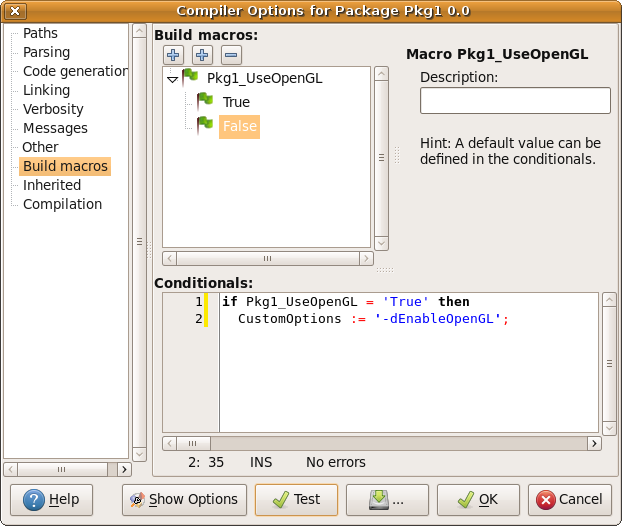
Notes:
- The value 'True' is case sensitive. Because the value is usually selected from the combobox, there is no chance of typos.
- If the user has not set any value for the macro, the Variable 'Pkg1_UseOpenGL' is undefined and the expression results to false.
Add a release/debug mode
A release/debug mode for your project and all your packages
Note: This requires Lazarus 0.9.31 or higher.
In the project's compiler options (Project / Project Options / Compiler Options / Build modes) add a build mode Release. Adding this build mode will automatically activate it, so all changes to the compiler options are now only done in this build mode.
In "Set Macro Values" click on the left column on the last row "(none)". Set it to "MyPackageOptions". Note: It is not listed in the combo box.
Set its value to the options. For example "-O3".
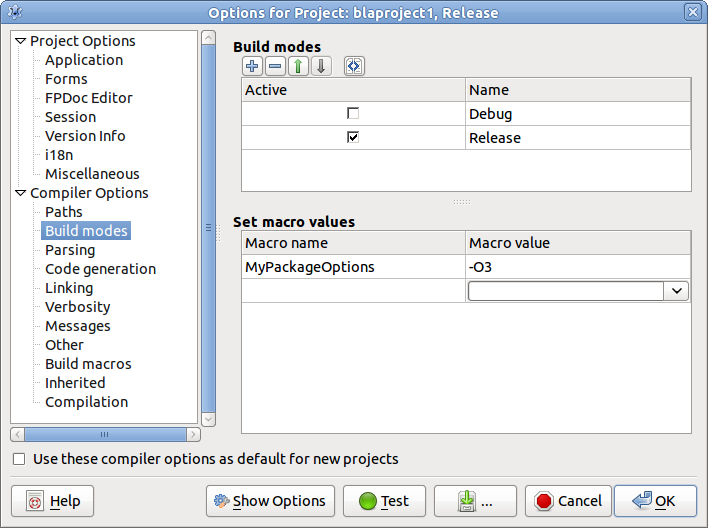
This macro is usable in the project compiler options and all packages.
For each package do: Open the compiler options of the package, go to the page Other. Add to Custom options the text $(MyPackageOptions).
A special release/debug mode for one package
Let's say the normal mode is the debug mode and you want another mode for the release.
Open the package editor of your package 'pkg1', click on compiler options, select the page Build Macros.
Under Build macros click on the left + button to add a new macro. It will be called 'Pkg1_Macro1'. Click on the tree node to rename it to 'Pkg1_Release'.
Click on the middle + button to add a new macro value. It will be called 'Value1'. Click on the tree node to rename it to 'True'. Repeat this for the value 'False'.
Add the following code into the Conditionals text box:
if Pkg1_Release = 'True' then
  // release mode
  CustomOptions := '-O3'
else
  // debug mode
  CustomOptions := '-Sa Ctroi';
Notes:
- The value 'True' is case sensitive. Because the value is usually selected from the combobox, there is no chance of typos.
- If the user has not set any value for the macro, the Variable 'Pkg1_Release' is undefined and the expression results to false.
Adding a macro for search paths to handle different platforms
Let's say your package is called Pkg1 and uses the windows GDI on MS Windows and X11 on Linux and BSD. The platform independent units are in the package main directory and you have created two sub directories 'gdi' and 'x11' containing the platform dependent units:
/path/of/your/package/pkg1/
  pkg1.lpk
  pkg1.pas
  generalunit.pas
  gdi/
    backend.pas
  x11/
    backend.pas
The unit backend in gdi should be used on Win32, Win64 and WinCE, while under Linux and FreeBSD the backend unit in the x11 should be used. This means the Other unit files (-Fu) search path must be adapted depending on the target OS. The following describes how to set this up step by step:
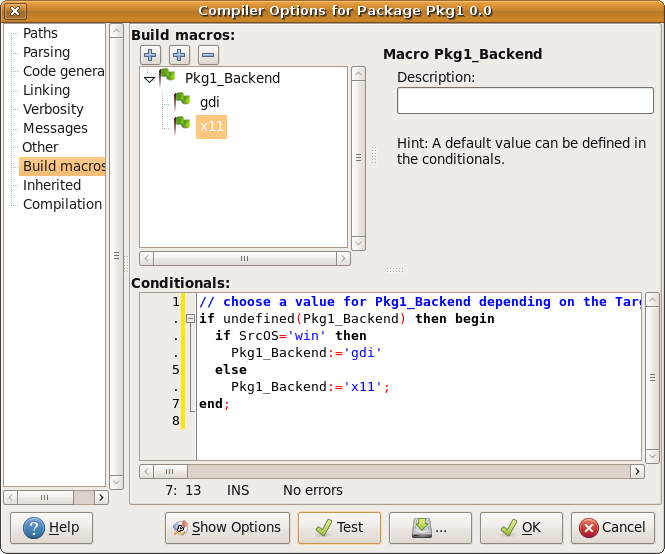
Open the package editor of your package 'pkg1', click on compiler options, select the page Build Macros.
Click on the left + button to add a new macro. It will be called 'Pkg1_Macro1'. Click on the tree node to rename it to 'Pkg1_Backend'.
Click on the middle + button to add a new macro value. It will be called 'Value1'. Click on the tree node to rename it to 'gdi'. Repeat this for the value 'x11'.
Add the following code into the Conditionals text box:
// choose a value for Pkg1_Backend depending on the TargetOS
if undefined(Pkg1_Backend) then begin
  if SrcOS='win' then
    Pkg1_Backend:='gdi'
  else
    Pkg1_Backend:='x11';
end;
The macro $(Pkg1_Backend) will become usable once you click Ok. So, click 'Ok' to close the compiler options and open it again to use it in the search path Other unit files (-Fu).
Notes:
- The user can override the value of Pkg1_Backend. Therefore it is good practice to enclose the setting in if undefined(Pkg1_Backend).
- Instead of the SrcOS macro you could use if (TargetOS='win32') or (TargetOS='win64') or (TargetOS='wince') then
From the Free Pascal wiki, page "Macros and Conditionals", as it stood on 2023-07-28 after a change by Mattias2, out of the wiki's dump of 2024-05-26. Copyright stays with the author who wrote it, according to the old wiki's Licensing page. If you have concerns about this material, message the admin.