macOS Big Sur changes for developers
(macOS only)
User interface changes
macOS 11 Big Sur introduces many user interface changes that update the appearance of applications and make them more iOS-like. It also adds support for familiar iOS features — such as SF Symbols and text styles.
Icons and Images
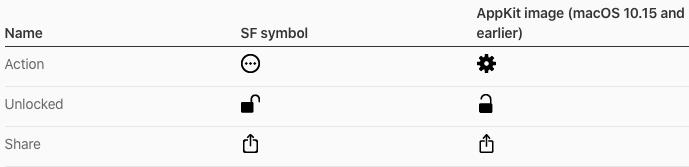
macOS 11 refreshes icon design throughout the system and also introduces multipurpose feature icons that can represent items or functions in sidebars and tables. It also adopts iOS SF Symbols. macOS 11 automatically maps AppKit shared images — such as Action, Unlocked, and Share — to specific symbols. In some cases, a symbol might not have the same size or alignment as the AppKit image it replaces, so check your layout.
Application icons
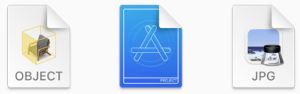
In macOS 11, application icons combine a rounded-rectangle shape, a front-facing perspective, and a consistent drop shadow.

The new design does not preclude judicious expressiveness. For example, the Preview, Xcode, and TextEdit icons continue to combine depictions of the physical objects that best convey the applicationʼs core purpose, while incorporating the new shape, perspective, and shadow.

Document Icons
To compose a document icon, the system combines your application icon with the familiar folded-corner icon shape. If your application opens or creates a large number of document types, you can also supply a custom centre image or background appearance to help people distinguish them.
Feature Icons
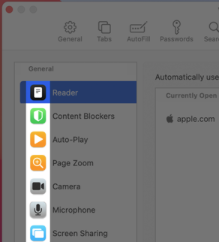
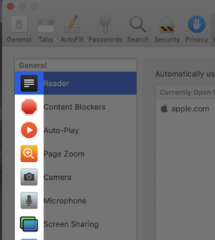
A feature icon can represent an item (or category of items), a technology, or a type of information in a table view or in the content sidebar of a preferences window. A feature icon typically uses the macOS 11 rounded rectangle shape to contain a simple, unambiguous glyph, but it can also use custom shapes and colors. For help designing a feature icon, download the production template included in the Apple Design Resources for macOS.
| macOS 11 | macOS 10.15 |
 |
 |
Application Accent Colours
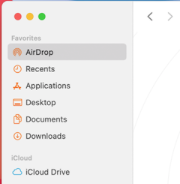
In macOS 11, you can specify an accent colour to customize the appearance of your applicationʼs buttons, selection highlighting, and sidebar glyphs. The system applies your accent colour when the current value in the user's General > Accent colour preferences is multicolour.
If users set the Accent colour preferences to a value other than multicolour, the system applies their chosen colour to the relevant items throughout your application, replacing your accent colour. The exception is a sidebar glyph that uses a fixed colour you specify. Because a fixed-colour sidebar glyph uses a specific colour to provide meaning, the system does not override its colour when users change the value of Accent colour preferences. To learn more, see Sidebars.
The iCloud glyph remains teal, even when the other glyphs use orange.
Windows and Views
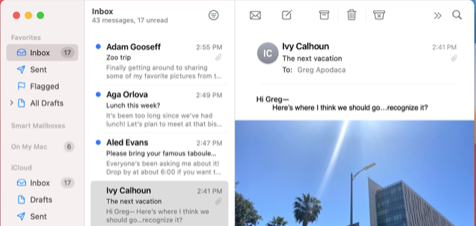
Throughout macOS 11, windows adopt visual cues from iOS interfaces. For example, windows integrate the sidebar, toolbar, and content areas, use an increased corner radius, and display lightweight controls.
Toolbars and Title Bars
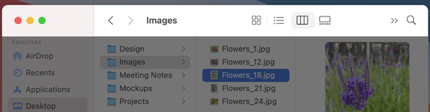
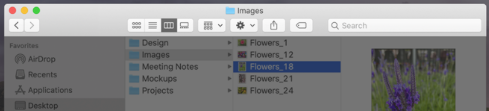
By default, toolbars are taller, window titles can display inline with controls, and toolbar items no longer include a bezel.
| macOS 11 | macOS 10.15 |
 |
 |
To match the default toolbar’s increased height, toolbar items automatically use the large control size. The exception is an integrated toolbar-title bar area — such as the one in a Safari window — which continues to use the regular control size. To accommodate the new default size, you’ll probably need to adjust the layout of your toolbar.
| macOS 11 | macOS 10.15 |
 |
 |
Continuing to use the minSize and maxSize APIs to set the size of a toolbar item can clip the control, because the current values don’t account for the larger default size. Use constraints if you need to specify minimum or maximum sizes for a toolbar control.
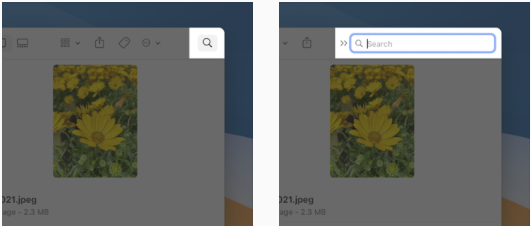
When horizontal space is limited, the toolbar can display the Search button in place of the search bar. When users click the Search button, the bar expands; when they click elsewhere in the window, the search bar collapses and the toolbar displays the button again.
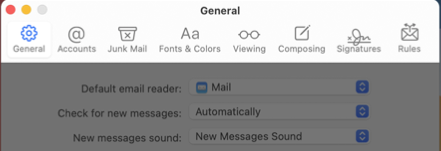
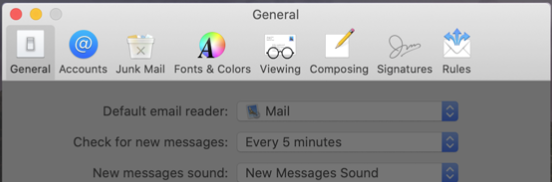
In a preferences window, the toolbar can use SF Symbols, but the title position remains above the toolbar buttons. When needed for clarity, individual toolbar buttons can include colour. To indicate the active preference pane, the window applies a system-provided selection appearance to the selected toolbar button.
| macOS 11 | macOS 10.15 |
 |
 |
If your window includes multiple panes, you can align different subsets of toolbar items with each pane, so that as people resize the window, each set of items remains above its associated view.
Sidebars
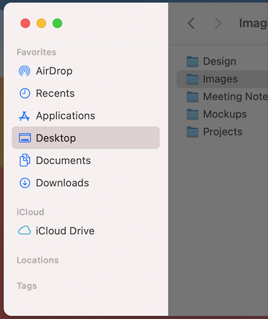
In macOS 11, a sidebar extends to the full height of the window. Within the sidebar, default item spacing, row height, and glyph size all increase, and the selected-item highlight uses a rounded-corner appearance.
| macOS 11 | macOS 10.15 |
 |
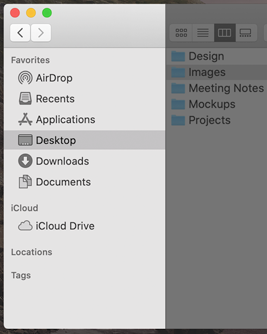 |
A sidebar’s row height, text, and glyph size depend on its overall size, which can be small, medium, or large. You can set the size programmatically, but users can also change it by selecting a different sidebar icon size in General preferences. The table below shows the differences in default sidebar metrics between macOS 11 and previous versions of macOS.
<thead>
</thead> <tbody>
</tbody>
Using SF Symbols is the easiest way to create sidebar glyphs that use the new metrics. Alternatively, you can use PDF template images to create sidebar glyphs; if you must use bitmap images, be sure to create them in small, medium, and large sizes, at both @1x and @2x resolutions.
By default, sidebar glyphs use the current accent colour (to learn more, see Application Accent Colours). If you need to clarify the meaning of an individual sidebar glyph, you can give it a fixed color that persists regardless of the user’s Accent colour preferences. Don’t use the ability to specify a fixed colour to stylize your application as a whole. In macOS, people expect to see their chosen accent colour throughout all the applications they use.
Table Views
In macOS 11, table views are larger overall, using taller rows, a larger font size, and more space between items to increase visual separation within and around table content. macOS 11 introduces three table-view styles to define different appearances that work well in specific window areas: inset, full-width, and automatic. For developer guidance, see NSTableView.style.
The inset style adds insets to the expanded spaciousness of macOS 11 tables. Because the inset style increases the visual space around the content, it works well in tables that fill the area between other views — such as sidebars and toolbars — and echoes the changes in sidebar appearance.
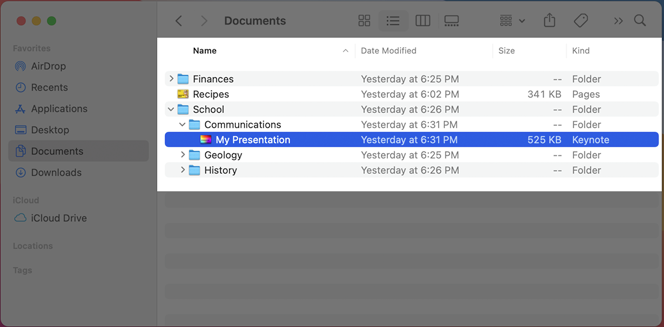
The classic, full-width table style remains available, but automatically includes the required content padding at the beginning and end of each row. The full-width style works best for tables that already have a visual margin around them, such as a table embedded in a preferences pane.
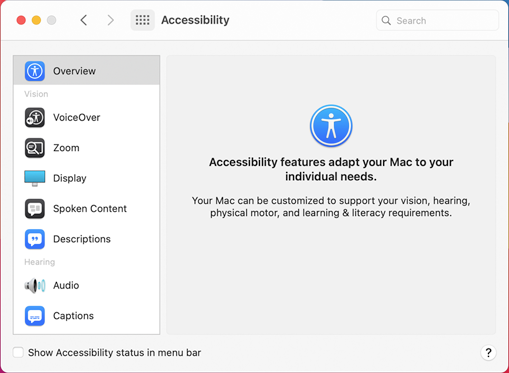
The automatic style means the system uses the table view’s position in the view hierarchy to help determine its appearance.
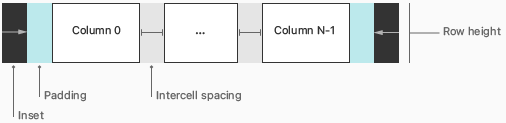
To create more spacious tables, macOS 11 uses several new table-view metrics. In the diagrams that follow, you can see how the layout of a table row differs between macOS 11 and macOS 10.15 and earlier.
| macOS 11 | macOS 10.15 |
 |
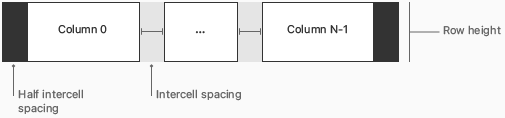 |
The following table lists the values for the table-row layout areas shown above.
| Table-view metric | macOS 11 | macOS 10.15 and earlier |
|---|---|---|
| Recommended row height | 24pt | 17pt |
| Minimum row height for text-only rows | 18pt | 17pt |
| Inset at leading and trailing row edges | 10pt (inset style); 0pt (other styles) | – |
| Padding at leading and trailing row edges | 6pt | – |
| Intercell spacing | (17,0) | (3,2) |
| Text size (style) | 13pt (Body) | 11pt |
In addition to the values listed in the table above, inset-style tables in macOS 11 also include a 10pt vertical inset before the first row and after the last row.
As you adjust the layout of your table content to follow the new metrics:
- Make sure your icons or glyphs can fit into a 16pt × 16pt area when you use the recommended 24pt row height
- Consider adding 6 points of space between items within a row to ensure a spacious table appearance
- If you don’t update your application, the appearance of your tables doesn’t change when your application runs in macOS 11. The exception is a table that implements a sidebar. If you identify the table style as a source list, the system automatically applies the new sidebar appearance. For guidance, see Sidebars; for developer guidance, see NSTableView.style.sourceList.
Tip: TIP In macOS 11, a table's width continues to equal the width of its rows, but the new padding and insets prevent columns and cells from covering the entire row. The system also uses the specified style to determine the space to add to row background features, like selection appearance or alternating row colors. If you need to provide content that completely covers a row — such as a custom background appearance — add it to the row instead of the cells.
Sheets
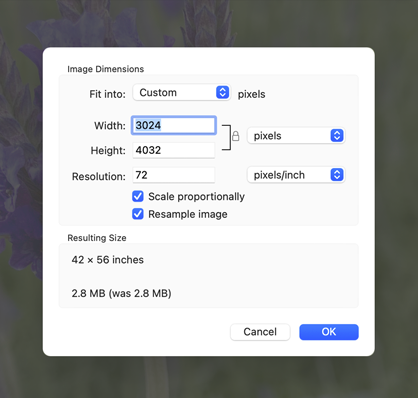
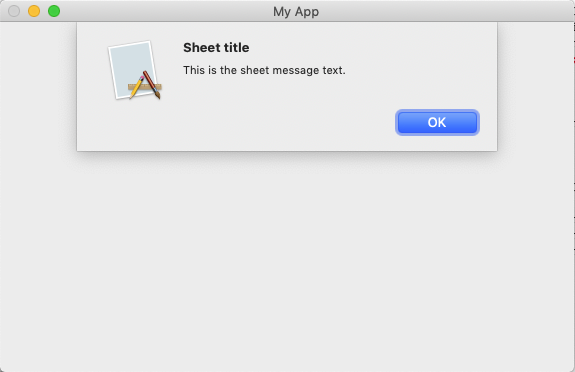
Sheets no longer unfurl from the bottom edge of the parent window’s toolbar. In macOS 11, a sheet is a rounded rectangle view that floats on top of the dimmed parent window.
| macOS 11 | macOS 10.15 |
 |
 |
Alerts
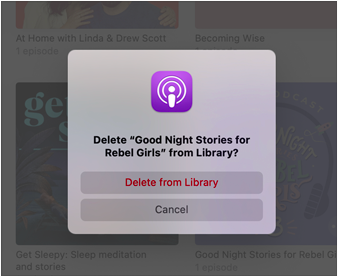
Alerts are cardlike rectangles that use the same corner radius as all windows in macOS 11. Within an alert, most content is center aligned.
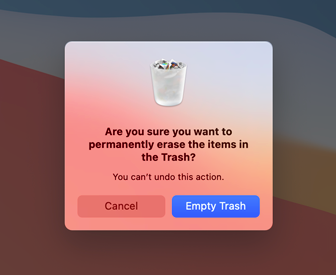
You can also use red text to emphasize a destructive action in an alert.
Menus
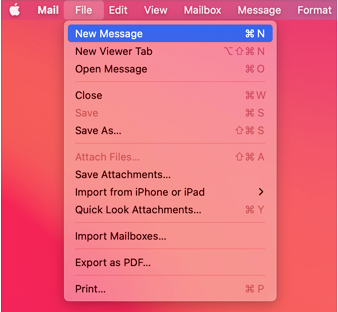
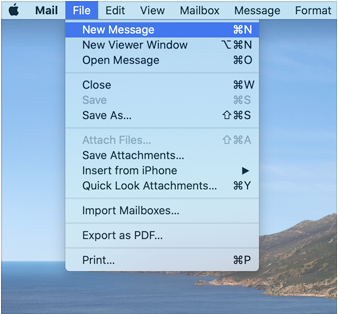
macOS 11 introduces visual changes to menus and menu content. If you use standard menus and menu items, you get the following default appearances automatically:
- Menu item titles use the same 13-point font size as sidebars and window content areas.
- Menu separator lines are 1 point thick and inset from the sides.
- The selection highlight for a menu item is a rounded rectangle that’s inset from the edges of the menu.
| macOS 11 | macOS 10.15 |
 |
 |
Controls
Refreshed AppKit controls — such as checkboxes, pop-up buttons, push buttons, and segmented controls — emphasize simplicity and boldness, similar to iOS controls while maintaining familiar appearances. When you use standard AppKit controls in your application, you shouldn’t have to adjust your interface to adopt the new appearances. The exception is the slider, which is taller.
| Slider | Size | macOS 11 (default) | macOS 10.15 and earlier (default) |
|---|---|---|---|
| Without tick marks | Regular | 28pt | 19pt |
| Small | 20pt | 15pt | |
| Mini | 17pt | 13pt | |
| With tick marks | Regular | 28pt | 24pt |
| Small | 20pt | 18pt | |
| Mini | 17pt | 15pt |
<thead>
</thead> <tbody>
</tbody>
<thead>
</thead> <tbody>
</tbody>
Beginning in macOS 11, the track of a slider with tick marks aligns with the center of the thumb.
Typography
Beginning in macOS 11, SF Pro is available as a variable font. The variable font format delivers a single package that includes the glyphs for all supported weights — such as regular, bold, and ultralight — in both uprights and italics. The variable format also supports optical sizing, which is a way to interpolate between glyphs to create size-specific versions of SF Pro to fit every design. Optical sizing replaces the need for the fixed-range Text and Display variants of SF Pro.
macOS 11 also introduces support for the full range of text styles, such as body, headline, and callout. Dynamic Type is not available in macOS 11. For guidance, see Typography.
Widgets
A widget elevates a small amount of useful content from your application. In macOS 11, you can create widgets in small, medium, and large sizes; people choose the size they want when they add your widget to Notification Center.
You can also create widgets for iOS and iPadOS. For guidance, see Widgets; for developer guidance, see WidgetKit.
Removed features
- Kernel extensions using certain KPIs deprecated in macOS 10.15 Catalina no longer load. Refer to the Apple support page for details.
Deprecations
- The default initializer on the auto-generated model interface has been deprecated in favor of init(configuration:). Use init(configuration:) or the newly introduced .load() method and handle model load errors as appropriate. (macOS 11.0.1)
- The function hv_vcpu_run(_:) is deprecated. (macOS 11.0.1)
- The VNIdentifiedPointsObservation class is deprecated. Use VNRecognizedPointsObservation instances instead. (macOS 11.0.1)
- Support for the Developer Transition Kit is no longer available as of macOS Big Sur 11.3. (macOS 11.3)
- Don’t use the iOS MinimumOSVersion information property list key to declare the minimum release of macOS in which your app runs. Use LSMinimumSystemVersion instead. (macOS 11.3)
New features
Security
macOS Big Sur 11 improves system security by requiring an administrator password when a certificate trust settings change is made in the admin trust domain. Running as the root user alone is no longer sufficient to modify certificate trust. User trust domain settings continue to require confirmation by entering the password for the user’s account. This change may affect you if one of the following is true:
- You have written scripts which call
/usr/bin/security add-trusted-cert -d ...as root. - Your process runs as root and calls the SecTrustSettingsSetTrustSettings function to trust a certificate.
- Workflows that add trust settings in the admin trust domain, such as for an enterprise root certificate, may require modification if the user can’t authenticate as an administrator at the time settings are changed.
- Workaround: Use Apple Configurator 2 to create and install a configuration profile containing your root certificate.
Kernel
- The
kern.argmaxlimit has been increased, allowing programs to receive longer argument lists. - Darwin
keventnow allows non-parent processes to register for NOTE_EXITSTATUS, which delivers the same values as thewait()family of functions in the event data. Refer to thewait4()man page for more information. This event is subject to the following security checks:- The requesting process is allowed to send signals by sandbox restrictions.
- The requesting process and the target process are running as the same user or the requesting process has root privileges.
Safari
- Support for Web Extensions is now available. Existing Chrome and Firefox extensions can be converted for Safari using xcrun safari-web-extension-converter and distributed through the App Store for use in Safari 14.
Time Machine
- APFS-formatted backup volumes are now supported for faster, more compact, and more reliable backups. New local and network Time Machine backup destinations are formatted as APFS by default. Time Machine will continue backing up to existing HFS backup volumes.
Virtualisation
- The Hypervisor framework now requires the com.apple.security.hypervisor entitlement.
- A new Virtualization framework provides high-level APIs to run Linux in a virtual machine.
Built-in dynamic linker cache
New in macOS Big Sur 11, the system ships with a built-in dynamic linker cache of all system-provided libraries. As part of this change, copies of dynamic libraries are no longer present on the filesystem. Code that attempts to check for dynamic library presence by looking for a file at a path or enumerating a directory will fail. Instead, check for library presence by attempting to dlopen() the path, which will correctly check for the library in the cache.
As the libraries are no longer present on the filesystem, it makes it difficult to disassemble them! Fortunately, there are ways to extract the system libraries from the cache. One way is provided by Apple itself: the dyld_shared_cache_util tool command-line tool. Unfortunately, this tool does not come installed with macOS Big Sur. However, the tool is open source - see dyld_shared_cache_util and for the "fixed to compile as is" Xcode project source see dyld-shared-cache-big-sur.
Other differences: Intel vs aarch64
- Timing: Any code which uses Mach Absolute time when run in Rosetta translation is given Mach ticks equivalent to one every nanosecond as happens on an Intel processor; whereas aarch64 native Mach ticks are incremented every 41.67 nanoseconds instead.
ARM64/AArch64/Apple Silicon Support
macOS 11 Big Sur is the first macOS version that supports Apple's AArch64 processors on the desktop. FPC trunk supports targeting this platform.
The following instructions assume that you are working on an AArch64 Mac, that you have already installed FPC 3.2.2 for Intel, and that the Xcode.app bundle is located in the /Applications folder. You can place it elsewhere and adjust the paths accordingly so long as there are no spaces in the path.
Note: If you have only installed the standalone Command Line Tools and not the full Xcode package, you will need to replace
/Applications/Xcode.app/Contents/Developer/Toolchains/XcodeDefault.xctoolchain/usr/binwith/Library/Developer/CommandLineTools/usr/binand/Applications/Xcode.app/Contents/Developer/Platforms/MacOSX.platform/Developer/SDKs/MacOSX.sdkwith/Library/Developer/CommandLineTools/SDKs/MacOSX.sdk
- Compile a native AArch64 compiler from the FPC trunk source :
make distclean make FPC=ppcx64 OPT="-ap -FD/Applications/Xcode.app/Contents/Developer/Toolchains/XcodeDefault.xctoolchain/usr/bin -XR/Applications/Xcode.app/Contents/Developer/Platforms/MacOSX.platform/Developer/SDKs/MacOSX.sdk" CPU_TARGET=aarch64 -j 4 FPMAKEOPT="-T 4" all > build.log
- Copy the created native compiler to a safe place (the delete + copy is to avoid issues with a code signature caching bug in the OS - see Updating a signed file for an explanation) :
rm -f ppca64 ; cp compiler/ppca64 .
- Build a complete native FPC distribution for Darwin/AArch64 :
make distclean make FPC=$PWD/ppca64 OPT="-ap -FD/Applications/Xcode.app/Contents/Developer/Toolchains/XcodeDefault.xctoolchain/usr/bin -XR/Applications/Xcode.app/Contents/Developer/Platforms/MacOSX.platform/Developer/SDKs/MacOSX.sdk" -j 4 FPMAKEOPT="-T 4" OVERRIDEVERSIONCHECK=1 all > build.log
- Install the built toolchain globally (under /usr/local) :
sudo make FPC=$PWD/ppca64 OPT="-ap -FD/Applications/Xcode.app/Contents/Developer/Toolchains/XcodeDefault.xctoolchain/usr/bin -XR/Applications/Xcode.app/Contents/Developer/Platforms/MacOSX.platform/Developer/SDKs/MacOSX.sdk" install
- Enable the fpc binary to find the AArch64 compiler (ppca64). You only need to do this once, even if you build/install newer build later on (unless the version number of trunk would change) :
sudo ln -sf /usr/local/lib/fpc/3.3.1/ppca64 /usr/local/bin
- Create a file called ".fpc.cfg" (note the starting ".") in your home directory with the following contents :
- include /etc/fpc.cfg
-FD/Applications/Xcode.app/Contents/Developer/Toolchains/XcodeDefault.xctoolchain/usr/bin -XR/Applications/Xcode.app/Contents/Developer/Platforms/MacOSX.platform/Developer/SDKs/MacOSX.sdk
Now you can use either fpc or ppca64 to compile AArch64 programs.
Warning: When you wish to build a newer version later on, make sure to restart at step 1. As always, compiling the trunk sources is only supported when you start with one of the latest two FPC releases, or with a compiler built from the same trunk sources. Starting with a trunk compiler built using previous trunk sources is not and never will be supported.
Creating a universal binary for aarch64 and x86_64
FPC applications
Open a Terminal and use the following commands:
fpc my_app.pas -omy_app_ARM64 -Paarch64
fpc my_app.pas -omy_app_X8664 -Px86_64
lipo -create -output my_app my_app_ARM64 my_app_X8664
strip my_app
You can check that you have created a universal binary with this command:
file my_appwhich should produce output similar to this:
my_app: Mach-O universal binary with 2 architectures: [x86_64:Mach-O 64-bit executable x86_64] [arm64]
my_app (for architecture x86_64):   Mach-O 64-bit executable x86_64
my_app (for architecture arm64):    Mach-O 64-bit executable arm64
Lazarus applications
- Go to Lazarus Menu, Project > Project Options > Compiler Options - Config and target
- Select Target CPU family "aarch64"
- Go to Lazarus Menu, Project > Project Options > Compiler Options - Paths - Target filename
- Rename my_app to my_app_ARM64
- Compile
- Go to Lazarus Menu, Project > Project Options > Compiler Options - Config and target
- Select Target CPU family "x86_64"
- Go to Lazarus Menu, Project > Project Options > Compiler Options - Paths - Target filename
- Rename my_app to my_app_X8664
- Compile
- Open a Terminal and execute the following commands in your my_app directory:
lipo -create -output my_app my_app_ARM64 my_app_X8664
strip my_app
You now have a universal binary with which to replace the symbolic link in your final application bundle's MacOS directory. You can check that you have created a universal binary with this command:
file my_appwhich should produce output similar to this:
my_app: Mach-O universal binary with 2 architectures: [x86_64:Mach-O 64-bit executable x86_64] [arm64]
my_app (for architecture x86_64):   Mach-O 64-bit executable x86_64
my_app (for architecture arm64):    Mach-O 64-bit executable arm64
Removing duplicate resources in universal binaries
When creating universal binaries any resources will be duplicated in each executable which increases the file size of the universal binaries, sometimes quite substantially depending on the size of the resources.
The Free Pascal Compiler supports loading external resources on Darwin using the -We command line option. For usage examples, see:
- https://gitlab.com/freepascal.org/fpc/source/-/blob/main/tests/test/units/system/tresext.pp and
- https://gitlab.com/freepascal.org/fpc/source/-/blob/main/tests/test/units/system/tres2ext.pp
Code signing - Intel vs M1
On Intel systems running Big Sur very little is required to be signed except for kernel and system extensions and related code which require special approval from Apple.
The situation is different on M1 Apple Silicon (aarch64) systems running Big Sur. There are a few situations to consider:
- Intel code running under Rosetta 2 - this does not need to be signed for practical reasons (ie the code is translated into aarch64 code for the M1 and so any signature for the Intel code would of course be invalid when applied to the aarch64 code).
- Native M1 aarch64 code will be blocked from execution unless a valid signature is attached. This signature can be as simple as an ad hoc code signature that doesn’t bear any actual identity from the secret half of an asymmetric key pair (it’s simply an unauthenticated measurement of the binary). The reason for this requirement is not to enable conventional code signature checks, but so that the executable code has a cdhash (code directory hash), which is used when macOS checks code before running it to verify that the contents of a binary have not changed since being code signed. If you don’t have an Apple developer signing certificate, an ad-hoc certificate generated on your Mac is quite sufficient. For those without developer accounts, Xcode now defaults to applying ad-hoc signing to its projects. As there is no requirement for an identity, and therefore any certificate to prove that identity, anyone can sign an application to run locally.
- Universal binaries that include both Intel code and native M1 aarch64 code will be blocked from execution unless a valid signature is attached.
Checking the status of code signing for FPC and/or FPC and Lazarus native code executables shows:
$ codesign -dv -r- ./program
Executable=/Users/trev/Documents/fpc_adhoc_test/program
Identifier=program
Format=Mach-O thin (arm64)
CodeDirectory v=20400 size=3392 flags=0x20002(adhoc,linker-signed) hashes=103+0 location=embedded
Signature=adhoc
Info.plist=not bound
TeamIdentifier=not set
Sealed Resources=none
# designated => cdhash H"6d17593d42b7b10d8af344197c48df47beda2779"$ codesign -dv -r- DemoDownload.app
Executable=/Users/trev/Documents/laz_resume_dload/DemoDownload.app/Contents/MacOS/DemoDownload
Identifier=DemoDownload
Format=app bundle with Mach-O thin (arm64)
CodeDirectory v=20400 size=110533 flags=0x20002(adhoc,linker-signed) hashes=3451+0 location=embedded
Signature=adhoc
Info.plist=not bound
TeamIdentifier=not set
Sealed Resources=none
# designated => cdhash H"bb0a310c980906bd6320deaabc72f543dc725bbb"So, it appears that the macOS linker is doing the ad hoc code signing for us and generating the all-important cdhash.
What happens if you edit the executable with the cdhash (I changed a single occurrence of Assertion to ASsertion) ?
 $ ./program
 Killed
and:
Process:               DemoDownload [7888]
Path:                  /Users/USER/Documents/*/DemoDownload.app/Contents/MacOS/DemoDownload
Identifier:            com.company.DemoDownload
Version:               0.1 (1)
Code Type:             ARM-64 (Native)
Parent Process:        ??? [1]
Responsible:           DemoDownload [7888]
User ID: 501Date/Time: 2021-03-14 15:52:46.806 +1100
OS Version: macOS 11.2.3 (20D91)
Report Version: 12
Anonymous UUID: FDB6D79D-592D-3959-8F4F-9EC29A74836CTime Awake Since Boot: 5300 secondsSystem Integrity Protection: enabledCrashed Thread: 0 Dispatch queue: com.apple.main-threadException Type: EXC_BAD_ACCESS (Code Signature Invalid)
Exception Codes: 0x0000000000000032, 0x00000001023bd758
Exception Note: EXC_CORPSE_NOTIFYTermination Reason: Namespace CODESIGNING, Code 0x2Beware if you use a workflow involving tools that modify a binary after linking (eg strip or install_name_tool). In these situations you will almost certainly need to manually use codesign as an additional build phase to properly ad-hoc sign your binary.
What does this mean for natively compiled FPC and Lazarus aarch64 binaries?
If you deploy:
1) an unsigned binary to your endusers, they will NOT be able to execute the binary on an M1 Apple Silicon computer. Note, however, that if the binary was linked on an M1 Apple Silicon computer, the macOS linker will have ad hoc signed the binary for you.
2) an ad hoc signed binary to your endusers, they will be able to execute the binaries on an M1 Apple Silicon computer. This is because these new signatures are not bound to the specific machine that was used to build the executable; they can be verified on any other system and will be sufficient to comply with the new default code signing requirement on Macs with Apple silicon. However, given that these signatures do not bear any valid identity, binaries signed this way cannot pass Gatekeeper.
For manual ad hoc code signing of an application bundle (note that a dash is using for the signing identity after the -s argument):
codesign --force --deep -s - MyApp.appAlso note that you cannot sign an application bundle where the executable is a symlink (eg an application compiled with Lazarus) unless you replace the symlink with the linked executable.
For manual ad hoc signing of a command line utility:
codesign --force -s - MyExeCode signing an x86_64 binary on an aarch64 machine
Apple Big Sur "New Look" external links
Apple Silicon external links
- Apple: Porting Your macOS Apps to Apple Silicon
- Apple: Building a Universal macOS Binary
- Apple: Addressing Architectural Differences in Your macOS Code
- Apple: Porting Your Audio Code to Apple Silicon
- Apple: Porting Your Metal Code to Apple Silicon
- Apple: Installing a Custom Kernel Extension
- Apple: Debugging a Custom Kernel Extension
- Apple: Platform Security Guide.
- Apple: Code signing x86_64 binaries on aarch64.
Big Sur Release Notes
From the Free Pascal wiki, page "macOS Big Sur changes for developers", as it stood on 2022-05-08 after a change by Trev, out of the wiki's dump of 2024-05-26. Copyright stays with the author who wrote it, according to the old wiki's Licensing page. If you have concerns about this material, message the admin.