IDE Window: Assembler
English · Français
Navigation
Main Menu > View > Debug Windows > Assembler
CallStack Window > Context menu > View Assembler
Important
You must setup the debugger and start the project to debug it. Only then this window will be useful.
Assembler
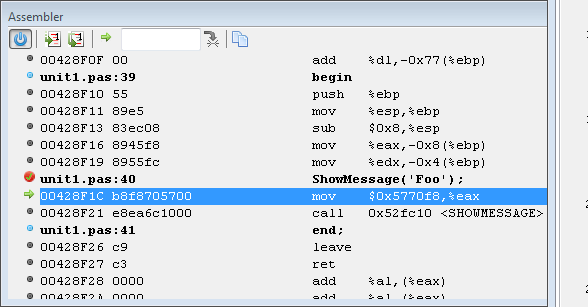
Shows an assembler view of the current code. This can be used with the Registers window.
Data displayed
Address
Hex dump
Asm statement
The output depends on your CPU
Pascal lines
If Pascal sources are available, then they are shown in front of their ASM representation.
Interface
Vertical Srollbar
The vertical scrollbar behaves different from normal scrollbars. Since the assembly data may continue to an unknown extend in both directions, there is no fixed range. Move and hold the slider in either direction to scroll. The further you move the slider from the center position the faster the scroll. If released the slider returns to the center.
Toolbar
 Power
Switch off the disassembler. The current disassembled data is kept as is. If the current location changes, it will be indicated only within the data. Introduced to deal with slow data loading since fetching any data from gdb takes noticeable time. It offers a quick way to temporarily disable loading so that other debug windows may be able to display their data sooner.
 Step over or into (one asm instruction)
Single step (into) one asm instructions, instead of on entire pascal instructions. Will enter subroutines.
 Step over (one asm instruction)
Single step (over )one asm instructions, instead of on entire pascal instructions. Will skip over subroutines.
 Return to current address
Returns to the current execution-point.
 Goto custom address
Shows the data at the address entered in the input field.
 Copy to clipboard
Copies the selected line(s) to the clipboard.
Context menu  Copies the selected line(s) to the clipboard.\
Using the same or different keys for Pascal and ASM stepping
The default keyboard settings are:
F7orF8: step into/over one pascal instructionAlt-F7orAlt-F8: step into/over one asm instruction
Those keys will act, independent of the focused window.
In the keyboard mapping (editor options) under "Run Menu" are also entries:
Alt-Shift-F7orAlt-Shift-F8: "Step into,over (Context)
Those will step asm only if the assembler window is focused, and step pascal otherwise.
The key mapping can be changed, for the unmodified F7/F8 to act on context.
Improve speed using the power button
The debugger will disassemble the required memory range after each step, or each run. This may require some time.
During single stepping the next execution point often is in already disassembled data. If you code is not self-modifying, then you can use the power button to disable the repeated disassembling. Once you stepped to the border of the disassembled range, you need to turn power on to allow disassembling the next block of data. Once you have the next block of data turn it off again. And so on.
Scope
The assembler window does not follow any scope.
The Stack window (context menu) allows to jump to the address of any stackframe. This acts like jumping to a custom address, the button will always return to the execution point at the top stack frame.
See also
From the Free Pascal wiki, page "IDE Window: Assembler", as it stood on 2021-03-20 after a change by Martin, out of the wiki's dump of 2024-05-26. Copyright stays with the author who wrote it, according to the old wiki's Licensing page. If you have concerns about this material, message the admin.