Cocoa Internals/Graphics
Colors
Cocoa-WS should be using device-dependent colors to match colors across other widgetsets.
That applies to color of Pen, Brush and Font.
The “Device” color-space names represent color spaces in which component values are applied to devices as specified. There is no optimization or adjustment for differences between devices in how they render colors. If you know exactly which device is connected to a system and you want to print or display a certain color on that device, then it makes sense to use a appropriate device-dependent color space when creating NSColor objects. However, it is usually not the case that an application knows which devices are connected and their specific color spaces. If you specify components of a color in a device-dependent color space—let’s say NSDeviceRGBColorSpace—and then have several displays render this color, you will see several slightly different colors.
To get around this problem you can use calibrated color spaces, which are designated by two of the color-space names in Table 1. A calibrated color space is a device-independent color space. The color spaces designated by NSCalibratedWhiteColorSpace and NSCalibratedRGBColorSpace color spaces are calibrated to a device that best represents devices in a particular class, such as color displays. It allows your application to present reasonably accurate colors when you are unsure about the color space of a device in a particular context.
System Colors
NSColor class provides a large variety of system themed colors:
Constant
LCL definition
NSColor
clScrollBar
Scrollbar body
scrollBarColor
Returns the system color used for scroll “bars”—that is, for the groove in which a scroller’s knob moves
clBackground
Desktop background color
windowBackgroundColor
Returns a pattern color that will draw the ruled lines for the window background.
clActiveCaption
Active window titlebar
windowFrameColor
Returns the system color used for window frames, except for their text.
clInactiveCaption
Inactive window titlebar
windowBackgroundColor
clMenu
Regular menu item background color
controlBackgroundColor
Returns the system color used for the background of large controls.
clWindow
The normal background brush of unselected text. Defined for controls like TEdit, TComboBox, TMemo, TListBox, TTreeView.
textBackgroundColor
Returns the system color used for the text background.
clWindowFrame
Color of frame around the window
windowFrameColor
clMenuText
The font color to use together with clMenu
controlTextColor
Returns the system color used for text on controls that aren’t disabled.
clWindowText
Font color to use together with clWindow
controlTextColor
clCaptionText
Active window titlebar text color
windowFrameTextColor
Returns the system color used for the text in window frames.
clActiveBorder
?
windowFrameColor
clInactiveBorder
?
windowFrameColor
clAppWorkspace
MDIMain form background
windowBackgroundColor
clHighlight
The brush color of selected element
selectedControlColor
Returns the system color used for the face of a selected control—a control that has been clicked or is being dragged.
clHighlightText
Font color of selected text (to use together with clHighligh).
selectedControlTextColor
Returns the system color used for text in a selected control—a control being clicked or dragged.
clBtnFace
Button background
controlColor
Returns the system color used for the flat surfaces of a control.
clBtnShadow
Button shadow color (bottom right) used to achieve 3D effect
controlShadowColor
Returns the system color used for the shadows dropped from controls.
clGrayText
The font color of disabled element
disabledControlTextColor
Returns the system color used for text on disabled controls.
clBtnText
Button font color to use together with clBtnFace
controlTextColor
clInactiveCaptionText
Inactive window titlebar text color
windowFrameTextColor
clBtnHighlight
Button highlight color (top left) used to achieve 3D effect
controlLightHighlightColor
Returns the system color used for light highlights in controls.
cl3DDkShadow
?
controlDarkShadowColor
Returns the system color used for the dark edge of the shadow dropped from controls.
cl3DLight
?
controlHighlightColor
Returns the system color used for the highlighted bezels of controls.
clInfoText
Font color for hints. Use together with clInfoBk
controlTextColor
clInfoBk
Brush color for hints. Use together with clInfoText
hard coded
The actual color value depends on MacOS version. Before macOS 10.10 (Yosemite) the color is yellowish. on 10.10 and after, the color is gray. The change follows Apple system hint color change. The API to identify hint window color is unknown.
CocoaInt unit also provides a global variable CocoaHintColor. The value is used to return value for clInfoBk. Thus if Apple changes the design in future, you can always adjust hint color from your code.
clHotLight
?
alternateSelectedControlColor
Returns the system color used for the face of a selected control in a list or table.
clGradientActiveCaption
The second color used to make gradient of active window titlebar
windowFrameColor
clGradientInactiveCaption
The second color used to make gradient for inactive window titlebar
windowBackgroundColor
clMenuHighlight
The background color of selected menu item
selectedMenuItemColor
Returns the system color used for the face of selected menu items. (depreciated in macOS 10.14)
clMenuBar
The Backround color of menu bar
selectedTextBackgroundColor
Returns the system color used for the background of selected text.
clForm
?
windowBackgroundColor
clColorDesktop
?
cl3DFace
?
cl3DShadow
?
cl3DHiLight
?
clBtnHiLight
Same as clBtnHighlight
For Reference: Apple Human Interface Guidelines - Dynamic System Colors
Hint Window
Cocoa provides its own API to show a popup hint window. Thus Cocoa doesn't provide must information on how hint popup window should actually be shown.
On dark theme of Mojave system, it became a bit more complicated. Besides a different fill color for darktheme, the popup window also draws a border of light pixels. 
Fonts
Historically, MacOS (Classic MacOS, Mac OS X, and macOS) systems are using 72 ppi (or dpi). Windows is using 96 dpi (so do Linux desktop managers).
Default
NSFont class provides a number of class methods to get proper system font without selecting the font by name. The same of getting system-native font size.
96 DPI
macOS native DPI (aka PPI) is 72 (it matches the basic typographic resolution).
For comparison: Windows native DPI is 96. You can read more about history of this difference here
In order to achieve the ease of use and design for cross-platform applications, Cocoa (screen) DPI is also emulated (by LCL) to be at 96 dpi. What that actually means is that font sizes between LCL applications and macOS native applications will be different (at roughly 33%).
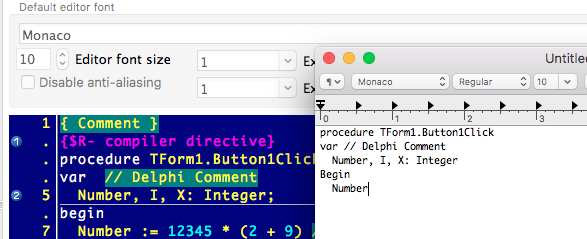
This can be adjusted by changing the CocoaBasePPI variable at run time.
Font Enumeration
To implement windows-like font enumeration, two NSFontManager methods are used
availableFontFamilies - to get the list of families
availableMembersOfFontFamily: - to get the list of available styles for fonts
Input parameters recognized:
-
todo: lfFaceName - the case-insensitive, exact name match.
Handles
The following objects are used to implement HANDLEs for graphical objects
LCL Handle
Cocoa WS Class
Notes
HICON
TCocoaBitmap
HPEN
TCocoaPen
HBRUSH
TCocoaBrush
HRGN
TCocoaRegion
HCURSOR
TCocoaCursor
TCocoaCursor doesn't inherit from TCocoaBitmap)
HBITMAP
TCocoaBitmap
TBitmap.Canvas.Handle
TCocoaBitmapContext
The key difference from TCocoaContext is that after any changes to bitmap context, the underlying image itself is invalidated.
This is necessary for Windows like behavior. (macOS image objects are immutable, but windows bitmaps are)
TControl.Canvas.Handle
TCocoaContext
Bitmap
TCocoaBitmap implements the internal bitmap handle.
Change Tracking
In order for a bitmap (a 2d-array of pixel values) to be drawn, a NSBitmapImageRep object.
The NSBitmapImageRep is immutable. Its contents cannot be changed after the initial drawing (the pixel values seems it be copied within Cocoa).
If a Bitmap contents was modified (i.e. by using (Canvas) Drawing methods or by direct access via ScanLine), the bitmap must re-create NSBitmapImageRep before the next drawing.
The SetModified() marks the Bitmap as modified. TCocoaBitmapContext (Device Context created for a Bitmap) would mark the bitmap as modified on any draw method.
Scan Lines
For PixelFormat 32-bit the pixel format is as following:
$BBGGRRAA
$ff0000ff - all blue
$00ff00ff - all green
$0000ffff - all red
$000000ff - all black (alpha channel only)
$ffffff00 - fully transparent
Forced Repaint
There's an additional code added for processing DrawRect event. If a control was resized during a draw rect, then the resulting graphics output could be corrupted. 32970
As an example TTreeView component could be used. It updates scroll bars during the initial paint. The update of scroll bars is causing a client rectangle to be changed, causing a glitch when drawing the control for the first time
Naturally, the next repaint fixes the problem right away.
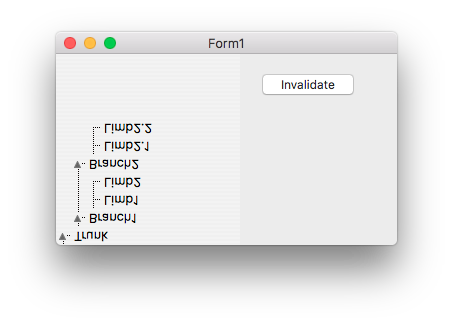
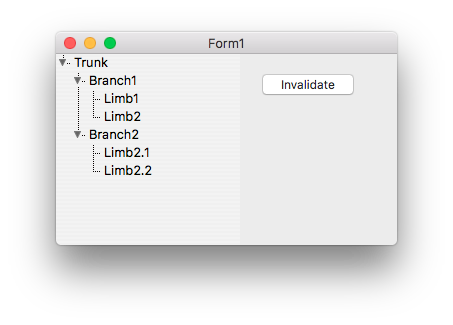
Sending another event into Cocoa event queue, to repaint the control again would cause flickering and yet bad user experience. Forcefully calling for a repaint one more time seems to be resolving the problem, while potentially is an overhead due to double job done.
Also double drawing could cause artifacts on controls that are using any sorts of transparency:
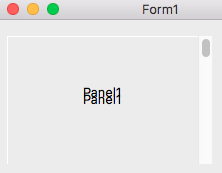
The best solution is to avoid changing of the control bounds at all during drawing operation.
Theme Drawing
HITheme API is deprecated by Apple together with Carbon. It's still available in OS X, but for i386 only. It will presumably be completely removed on 64-bit only macOS.
However, some LCL controls cannot be mapped to existing Cocoa provided controls and thus might require some "custom drawing". The drawing should look system native though. In order to achieve that the NSCell family could be used. NSCell allows drawing (hit-test and as well as handle user input) for OS X native elements. If Apple changes the appearance of controls (cells), the LCL application would "pick-up" the look automatically.
Deprecated? macOS version specific? In order to be drawn NSCells require the presence of NSView, thus it's hard to use them for the implementation of LCL TTheme APIs. NSView doesn't seem to be required. At least NSCell operates without the presence NSView. However, per Apple's documentation it's mentioned that the drawing would occur in a "focused" control. That helps to use NSCell for on-screen drawing, but is a big question for bitmap drawing.
Example of NSCell usage is CocoaStatusBar drawing.
It might be that Apple moves away from using NSCell. The class itself is not yet deprecated, even though Apple suggests that NSView should be used more extensively.
See Also
From the Free Pascal wiki, page "Cocoa Internals/Graphics", as it stood on 2022-05-31 after a change by Skalogryz, out of the wiki's dump of 2024-05-26. Copyright stays with the author who wrote it, according to the old wiki's Licensing page. If you have concerns about this material, message the admin.