Autosize / Layout/zh TW
English · Русский · 中文(中国) · 中文(台灣)
概述
LCL 會自動修改 controls 的大小和位置,所以它會根據字體,主題,文字和其他內容來自動適應。如果你想讓你的程式在多個平台上執行,或者程式裡的 captions 有多個語言。那麼,你的 controls 需要正確地適應本地環境. LCL 不僅允許你用快速的第一設計模式(用滑鼠在 form 上移動 controls),也允許你之後再改動一些主要的屬性來使得 controls 自動適應後來的內容變動。
- Fixed design: 當在 designer 裡放置好 control 後,它就預設地啟用. Control 的位置相對它的父組件是固定的. Control 的大小和位置(Left, Top)可以被程式員改變。你可以自由地用滑鼠移動 control 或改變其大小。
- Aligned: 對齊的 controls 會根據設定填充父組件的頂部,底部,左邊,右邊的剩餘空間或者整個剩餘空間。
- Anchored: 你可以在 control 的邊上(left, top, right, bottom)拋錨,錨住父組件或者另一個 control. 一旦錨住後, LCL 就會使得拋錨的那個邊和被錨住的組件的距離固定。
- Layout: controls 可以自動地依據行列對齊(例如 TRadioGroup)
- Custom via OnResize: 自己處理 OnResize, OnChangeBounds 事件,你就可以自己安排 controls 了。
- Custom controls: 自己寫 controls, 那麼你就可以按你需要覆寫幾乎所有 LCL 行為了。
優先級規則
- Constraints
- Align
- Anchors
- ChildSizing.Layout
- AutoSize
- OnResize, OnChangeBounds - 要注意的是,如果你設定的 bounds 和上述規則有衝突,那麼程式會進入無窮迴圈。
常用屬性
一些用來配置 autosizeing 的重要屬性:
- Left, Top, Width, Height
- AutoSize: autosize 另 LCL 自動地更改 control 的寬和高。
- Anchors: 創建一個錨。例如,將一個 ComboBox 錨在一個 Label 的右邊。
- Align
- Constraints: 設定寬和高的最小值和最大值。
- BorderSpacing: 設定被錨住的 control 之間的空間。
- ChildSizing: 設定子 control 的 layout 和空間。
上述法則的內部原理在此有描述: LCL AutoSizing.
Fixed design
這是預設設定. Anchors 屬性會被設定成 [akLeft, akTop], 也就是說, LCL 不會改變 Left, Top. 如果 AutoSize 為 false, 那麼 Width 和 Height 也會保持不便。如果 AutoSize 為 true, 那麼 Width 和 Height 會改動以適用內容。例如, TLabel.AutoSize 預設是 true, 因此,改變 Caption 就會重設 label 的大小. TButton.AutoSize 預設為 false, 所以改變 Caption 不會重設按鈕的大小。當你將 Button.AutoSize 設成 true 後,這個按鈕會在每次 Caption, 字體,主題改變後縮小或增大。要注意的是,這種改變不總是立即進行的。例如,在 FormCreate 時,所有 autosizing 動作會懸掛。 你可以在任何時候改變 Left, Top, Width, Height 屬性。
AutoSize
AutoSize 這個布林屬性出現在許多類中;它允許 control 自動進行大小的調整以適應它包含的文本或圖形,也允許最有效地使用可用的空間。這是創建跨平台窗體的一個非常重要的機制。
通常, AutoSize=true 後,會為可見 control:
- 如果可能,它改變 control 的大小到 preferred size. 例如,一個 TButton 的寬度和高度被改變大小以適應它的 caption, 而對於 TEdit, 只改變高度. TEdit 的寬度不會自動改變大小。你可以手工改變它。可參考下 GetPreferredSize.
- 它同時移動所有固定位置的子 control。最左邊的子 control 會移到 Left=0 (依賴於 BoarderSpacing), 最上邊的子 control 會移到 Top=0.
Difference to Delphi
Delphi 的 AutoSize 僅在特定的屬性改變時作用。例如,當 TLabel 的 Font 被改變時. LCL 的 AutoSize 總是有效的。例如,在 Delphi 裡,一個 AutoSize=true 的 Label 仍然可以設置大小(可能造成部分或全部 Caption 無法顯示), 這在 LCL 中是不會出現的,因為 AutoSize 總是起作用。另外,隱藏的 controls 不會被改變大小。
AutoSize and resizing the control
當 AutoSize=false 按鈕就會呈現固定的大小。
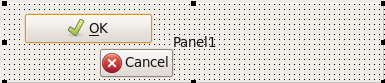
當對 button 設置 AutoSize=true, 那麼這些 buttons 就會被增大或縮小以適應文字或主題框架。
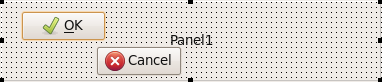
如上圖的 OK 按鈕所示, AutoSize 並不會將按鈕縮小到儘可能小。它使用GetPreferredSize 來獲取建議大小,這個函數又會調用 CalculatePreferredSize. 預設的 TWinControl 實作會查詢 widgetset, 它可能設定了建議的 width 和 height. 每個 control 都能覆寫 CalculatePreferredSize. 例如, TImage 就覆寫它並返回圖片的大小。如果沒有沒有建議的 width(或 height), 那麼就返回 0, LCL 會保持 width(height), 除非 ControlStyle 標記 csAutoSize0x0 被設置(這個標記當前只被 TPanel 使用).
TWinControl 計算它所有的 controls 的大小,然後利用這個值來計算它自己的建議大小。
當一個 control 的左錨和右錨都錨到其他對象,那麼它的 寬度就是固定的(動態的固定,依錨住的對象的位置變動而改變)。例如,當 Align=alTop(Align 屬性可看作一個快速設置錨的屬性,會覆蓋錨的設置), 這個 control 就的左錨就錨住它的父對象的到左邊界,右錨就錨住它的父對象的右邊界。之後它的寬度就隨父對象而改變了。如果 Parent.AutoSize 是 true 的話,那麼 Parent 將會實用這個 control 的建議寬度來計算它自己的建議寬度,參閱 Align and AutoSize. 如果沒有可用的建議寬度,那麼就使用最後設置的邊界(BaseBounds 或者 ReadBounds). 如果邊界為設置,那麼就調用 GetControlClassDefaultSize 方法。對於 Height 也是同樣的機制。
Constraints(約束)總是起作用,且優先級更高。
AutoSize and moving child controls
When AutoSize=false you can place and move controls freely:
When AutoSize=true child controls with fixed positions are moved to fit.
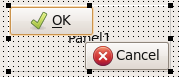
Both buttons on the panel were moved by the same amount to top and left, so that there is no space left to the left and top. If the buttons would have BorderSpacing>0 or the Panel.ChildSizing.LeftRightSpacing>0 the buttons would be moved so that the defined space is used.
Only child controls with the following values are moved:
- Anchors=[akLeft,akRight]
- AnchorSide[akLeft].Control=nil
- AnchorSide[akTop].Control=nil
- Align=alNone
The moving of the child controls depend on the propert ChildSizing.Layout. The layout is applied in the method TWinControl.AlignControls which can be overridden. For example TToolBar overrides that and defines a flow layout where controls that do not fit are put into subsequent lines.
Controls can disable the moving of child controls by setting the ControlStyle flag csAutoSizeKeepChildLeft and csAutoSizeKeepChildTop (since 0.9.29).
AutoSize and Forms
Forms without Parent are controlled by the window manager and can therefore not be placed or resized freely. Setting the size is only a recommendation and might be ignored by the window manager. For example you might set the Width of a Form to 1000 and the widgetset might answer with a resize to 800. If you set the Width in OnResize you might create an endless loop. That's why the LCL TForm disables AutoSize when the widgetset resizes the form.
That means AutoSize for forms stops when the user resizes the form or if the window manager does not like the bounds. For example some Linux window managers have features like magnetic sides which resizes windows in relationship to other windows.
Force an auto sizing of a form
You can start/execute a new AutoSize by doing:
Form1.AutoSize := False;
Form1.AutoSize := True;
Compute the size of an autosized form in advance
When placing an autosized form you might need the size of the form before showing it. Autosizing requires the handle. You can compute the size of a form before showing it with:
From1.HandleNeeded;
Form1.GetPreferredSize(PreferredWidth,PreferredHeight);Note: The window manager and form events might change the size. The preferred size does not include the form's window borders. This is a planned feature.
Anchor Sides
Controls have four sides: akLeft, akTop, akRight and akBottom. Each side can be anchored to the parent or the side of another sibling (a control with the same parent). Anchoring means keeping the distance. The default is Anchors=[akLeft,akTop]. Vertical anchors are independent of horizontal anchors. Some properties like Align and Parent.AutoSize have higher precedence and can change the behaviour.
Anchored to Parent or Nil
Anchoring to Nil (the default) has almost the same effect as anchoring to the Parent. Both try to keep the distance to a side of the Parent's client area. Anchoring to Nil uses the distance of the last SetBounds call, while Anchoring to Parent uses the BorderSpacing value.
There are four combinations of akLeft,akRight (akTop,akBottom):
- akLeft, no akRight: the control's Left is fixed and not changed by the LCL. The right side is not anchored, so it follows the left side. That means the Width is kept too.
- akLeft and akRight: the control's Left is fixed and not changed by the LCL. The right side is anchored to the Parent's right side. That means if the Parent is enlarged by 100pixel then the control's Width is enlarged by 100pixel too.
- akRight, no akLeft: the control's left side is not anchored, so it will follow its right side. The right side is anchored. That means if the parent is enlarged by 100pixel then the control is moved to the right by 100pixel.
- no akLeft and no akRight: neither sides are anchored. The position of the center of the control scales with the parent. For example if the control is in the middle of the parent and the parent is enlarged by 100 pixel, then the control is moved 50pixel to the right.
Changing the size of the parent of an anchored control
A GroupBox with a Button: 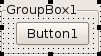
When the GroupBox is enlarged the distance of the anchored side is kept:
With akLeft, no akRight: 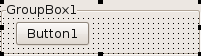
With akLeft and akRight: 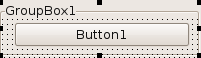
With akRight, no akLeft: 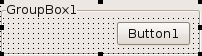
Three buttons in a groupbox: 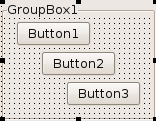
With no akLeft and no akRight their centers are scaled: 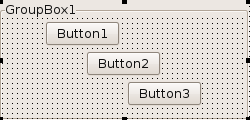
Changing the size of an anchored control
When changing the Width of an anchored control, for example via the Object Inspector or via code Button1.Width:=3, you can see the difference between anchoring to Parent and anchoring to Nil. Anchoring to Parent will resize and move the Button1, while anchoring to Nil will only resize. For example:
Anchored to nil
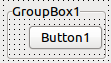 A Button1 anchored [akTop,akRight], AnchorSide[akRight].Control=nil
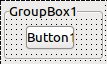 Setting the Width to a smaller value will shrink the button, keeping the button's Left, increasing the distance of the right side.
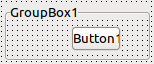 When the Groupbox is resized the button will keep the new distance.
Explanation: setting the Width is equivalent to calling SetBounds(Left,Top,NewWidth,Height). That's why the Left is kept. This is Delphi compatible.
Anchored to Parent
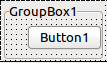 A Button1 anchored [akTop,akRight], AnchorSide[akRight].Control=Button1.Parent
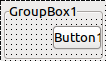 Setting the Width to a smaller value will shrink the button, keeping the right distance, changing the button's Left.
Anchored to sibling
You can anchor to neighbor controls. The following example shows:
- you can anchor a label's left to the left of a button
- anchor a label's top to the bottom of a button
- anchor the center of a label to the center of a button
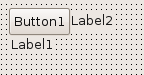
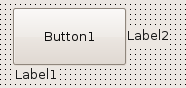
For more details and how to setup anchors see: Anchor Sides.
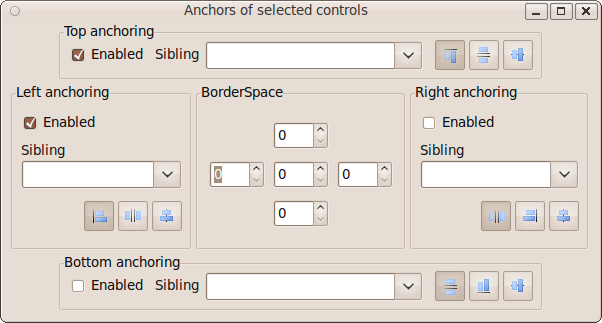
BorderSpacing
The BorderSpacing properties controls the minimum amount of space around a control. The properties are:
- Around: this amount in pixel is added to Left, Top, Right, Bottom.
- Left: space in pixel on the left side of the control
- Top: space in pixel above the control
- Right: space in pixel on the right side of the control
- Bottom: space in pixel below the control
- InnerBorder: this amount in pixel is added twice to the preferred width and height. Some controls override the calculation and ignore this property. An example where it works is TButton. With InnerBorder you can make a button bigger than needed.
- CellAlignHorizontal: This is used in table layouts like ChildSizing.Layout=cclLeftToRightThenTopToBottom. If the control is smaller than the table cell, this property defines where to align the control: to the left ccaLeftTop, to the right ccaRightBottom or in the middle ccaCenter.
- CellAlignVertical: same as CellAlignHorizontal but for vertical alignment.
BorderSpacing rules
- Around is added to Left,Top,Right,Bottom
- The horizontal space between two controls (LeftControl, RightControl on Parent) is the maximum of
- LeftControl.BorderSpacing.Right + LeftControl.BorderSpacing.Around
- RightControl.BorderSpacing.Left + RightControl.BorderSpacing.Around
- Parent.ChildSizing.HorizontalSpacing
For instance if LeftControl.BorderSpacing.Right = 3 and LeftControl.BorderSpacing.Around = 4, then there is at least 7 pixel space between the two controls. If RightControl.BorderSpacing.Left = 4 and RightControl.BorderSpacing.Around = 4 then the space will be at least 8. If Parent.ChildSizing.HorizontalSpacing = 10 then the space will be at least 10.
Note: The space can be even bigger, if the controls have constraints that don't allow to expand.
A common example is anchoring a Label to an Edit.
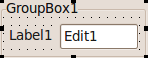
The Label center is vertically anchored to the Edit. The Edit's left side is anchored to the right side of the Label. Both have BorderSpacing.Around=6. This results in 6 pixel space between the Label and the Edit and 6 pixel space left of the Label and 6 pixel space right of the Edit. There is 6 pixel space above and below the Edit as well.
- The left space between a control and its parent (Label1 on GroupBox1) is the maximum of
- Label1.BorderSpacing.Left + Label1.BorderSpacing.Around
- GroupBox1.ChildSizing.LeftTopSpacing
- The right space between a control and its parent (Edit1 on GroupBox1) is the maximum of
- Edit1.BorderSpacing.Right + Edit1.BorderSpacing.Around
- GroupBox1.ChildSizing.RightBottomSpacing
- When a control's center is anchored to another control, for example the above Label is centered vertically to the Edit1, then all spacings are ignored.
- When a control's left side is anchored to the left side of another control (i.e. they are aligned with the left side), then the space is the maximum of
- Control1.BorderSpacing.Left + Control1.BorderSpacing.Around
- Control2.BorderSpacing.Left + Control2.BorderSpacing.Around
Here is a more complex example:
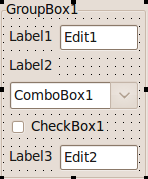
The important parts of the lfm code:
  object GroupBox1: TGroupBox
    AutoSize = True
    Caption = 'GroupBox1'
    TabOrder = 0
    object Label1: TLabel
      AnchorSideLeft.Control = GroupBox1
      AnchorSideTop.Control = Edit1
      AnchorSideTop.Side = asrCenter
      BorderSpacing.Around = 6
      Caption = 'Label1'
    end
    object Edit1: TEdit
      AnchorSideLeft.Control = Label1
      AnchorSideLeft.Side = asrBottom
      AnchorSideTop.Control = GroupBox1
      AnchorSideRight.Control = GroupBox1
      AnchorSideRight.Side = asrBottom
      Anchors = [akTop, akLeft, akRight]
      BorderSpacing.Around = 6
      TabOrder = 0
      Text = 'Edit1'
    end
    object Label2: TLabel
      AnchorSideLeft.Control = GroupBox1
      AnchorSideTop.Control = Edit1
      AnchorSideTop.Side = asrBottom
      BorderSpacing.Around = 6
      Caption = 'Label2'
    end
    object ComboBox1: TComboBox
      AnchorSideLeft.Control = Label2
      AnchorSideTop.Control = Label2
      AnchorSideTop.Side = asrBottom
      AnchorSideRight.Control = GroupBox1
      AnchorSideRight.Side = asrBottom
      Anchors = [akTop, akLeft, akRight]
      BorderSpacing.Right = 6
      TabOrder = 1
      Text = 'ComboBox1'
    end
    object CheckBox1: TCheckBox
      AnchorSideLeft.Control = GroupBox1
      AnchorSideTop.Control = ComboBox1
      AnchorSideTop.Side = asrBottom
      BorderSpacing.Around = 6
      Caption = 'CheckBox1'
      TabOrder = 2
    end
    object Label3: TLabel
      AnchorSideLeft.Control = GroupBox1
      AnchorSideTop.Control = Edit2
      AnchorSideTop.Side = asrCenter
      BorderSpacing.Around = 6
      Caption = 'Label3'
    end
    object Edit2: TEdit
      AnchorSideLeft.Control = Label3
      AnchorSideLeft.Side = asrBottom
      AnchorSideTop.Control = CheckBox1
      AnchorSideTop.Side = asrBottom
      BorderSpacing.Around = 6
      TabOrder = 3
      Text = 'Edit2'
    end
  end
BorderSpacing and Align
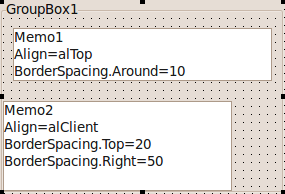
BorderSpacing works with Align. In the example below there is a Memo1 with Align=alTop and a Memo2 with Align=alCLient.
- Normally the two Memos would fill the whole GroupBox.
- But the Memo1 has BorderSpacing.Around=10, so there 10 pixel space around Memo1.
- The Memo2 has BorderSpacing.Top=20. The space between Memo1 and Memo2 is the maximum, which is the 20 from Memo2.
- Memo2 has also BorderSpacing.Right=50 so there is 50 Pixel space right of Memo2.
- The GroupBox can define default space for all its child controls via ChildSizing.LeftRightSpacing/VerticalSpacing/HorizontalSpacing. In this example it does not (all 0).
Align
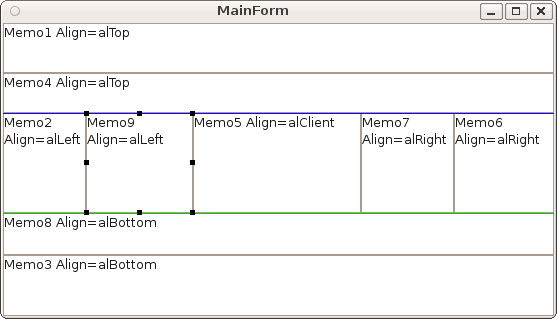
The Align property works pretty much like in Delphi and can be used to quickly fill an area. For example to let a TListBox fill the entire area of its Parent, set ListBox1.Align=alClient. The align values alTop, alBottom, alLeft and alRight will place controls without overlapping if possible. That means all controls with Align in alLeft,alTop,alBottom,alRight will not overlap if there is enough space.
The algorithm works as follows:
- First all controls with alTop are put to the top of the client area. If there are several controls with alTop the last added/moved will be put topmost. The algorithm will try to avoid overlapping and keep the height of the control, while expanding the width to maximum. AnchorSides of the left, top and right sides are ignored. The bottom AnchorSide works normal. Borderspacing and Parent.ChildSizing spaces are considered, so you can define space around each aligned control.
- Then all controls with alBottom are put to the bottom of the client area. Otherwise it works analog to alTop.
- Then all controls with alLeft are put to the left of the client area between the alTop and alBottom controls. Otherwise it works analog to alTop.
- Then all controls with alRight are put to the right of the client area between the alTop and alBottom controls. Otherwise it works analog to alTop.
- If there is a control with alClient it will fill the remaining client.
- If there is more than one control with alClient they will be placed at the same position, overlapping each other. Use the Visibility property to define which one is shown.
Align and BorderSpacing
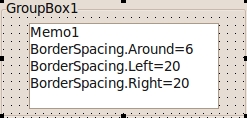
The space of BorderSpacing and of the parent's ChildSizing is applied to aligned controls. The memo below has Align=alClient.
Align and Anchoring
The free side of an aligned control (e.g. the right side of a Align=alLeft) follows the anchoring rules. If the anchor is not set, then the control will keep its Width. If the anchor is set, then the Width will change.
Align and AutoSize
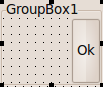
A control aligned with alLeft or alRight expands vertically, and will use its designed width. If AutoSize is set to true, then the Width will be the preferred width. The button below has Align=alRight and AutoSize=true.
Align and parent AutoSize
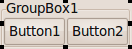
A control aligned with alClient fills the remaining space. A parent control with AutoSize=true will expand or shrink to enclose its children exactly. What happens if you combine these two properties? Say you put a button with Align=alClient into a groupbox with AutoSize=true?
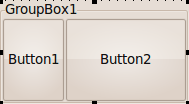
The LCL uses the preferred size of the buttons and expands or shrinks the groupbox accordingly:
alCustom
This Align value exists for custom AutoSize algorithms and is treated by the LCL almost like alNone. Controls with alCustom are not moved by the LCL but by your custom control. You have to override CalculatePreferredSize and DoAutoSize.
Order of controls with same Align
Controls with same Align are added in the following order. On alLeft the control with the lowest Left wins, for alTop the lowest Top, for alRight the biggest Left+Width, for alBottom the biggest Top+Height. If two controls have the same coordinate the one last moved (calls to SetBounds or SetParent) wins. Controls can override CreateControlAlignList to change the order or override DoAlignChildControls to handle the whole Align.
Note: Before 0.9.29 controls at the same coordinate were put in Z order. This resulted in reordering in some cases and had to be fixed. There is one incompatibility: If you added several controls with alTop or alLeft without specifying bounds the controls are put at 0,0 and therefore the last added wins, where formerly the first won.
Layout
Rows, columns and lines
You can align child controls in rows and columns using the ChildSizing properties. For example:
- ChildSizing.Layout=cclLeftToRightThenTopToBottom
- ChildSizing.ControlsPerLine=3
- AutoSize=false (the groupbox does not fit the childs)
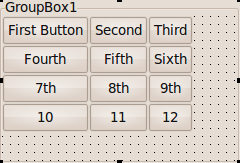
The Layout property defaults to cclNone. If you set Layout to another value, every child, that has normal anchors, will be aligned. Normal anchors means:
- Anchors=[akLeft,akTop]
- AnchorSide[akLeft].Control=nil
- AnchorSide[akTop].Control=nil
- Align=alNone
The value cclLeftToRightThenTopToBottom will put the first child at top, left, the second to the right, and so forth. This is a line. The property ControlsPerLine defines when a new line is started. In the above example each line (row) has 3 controls. There are 12 controls, so there are 4 lines (rows) each with 3 controls (columns). If ControlsPerLine is 0 it means unlimited controls per line - there would be only one row with all childs.
You can see that the rows have different sizes, each row has the size of the biggest control and that the controls are resized to column width. There is no space between the rows. The space in the image comes from the used theme, not from the LCL.
Fixed space between rows and columns
You can add space between with these properties:
- ChildSizing.VerticalSpacing - Space between rows
- ChildSizing.HorizontalSpacing - Space between columns
- ChildSizing.LeftRightSpacing - Space on the left and right of all columns
- ChildSizing.TopBottomSpacing - Space above and below of all columns
The above example with ChildSizing.VerticalSpacing=6, ChildSizing.HorizontalSpacing=15, ChildSizing.LeftRightSpacing=30, ChildSizing.TopBottomSpacing=10, AutoSize=true
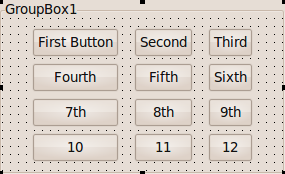
Additionally you can add individual space for each control with its BorderSpacing properties.
Enlarge
The above example resized the GroupBox to the needed space. If your GroupBox has a fixed size or if it is not freely resizable, for instance if the GroupBox should fill the whole width of the form, then the childs should enlarge. There are several modes. The default mode ChildSizing.EnlargeHorizontal=crsAnchorAligning is to not enlarge anything. The space on the right side will be unused.
- crsAnchorAligning - do not use the extra space
- crsScaleChilds - multiply the width/height with the same factor
- crsHomogeneousChildResize - add to each width/height the same amount
- crsHomogeneousSpaceResize - add to each space between the childs the same amount
crsScaleChilds
ChildSizing.EnlargeHorizontal=crsScaleChilds, ChildSizing.EnlargeVertical=crsScaleChilds, AutoSize=false
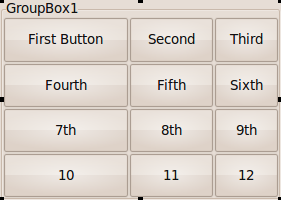
For example if the ClientWidth is twice as big as needed, then every child will be twice as big.
crsHomogeneousChildResize
ChildSizing.EnlargeHorizontal=crsHomogeneousChildResize, ChildSizing.EnlargeVertical=crsHomogeneousChildResize, AutoSize=false
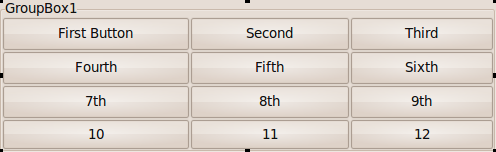
For example if the ClientWidth is 30 pixel bigger than needed, then every child will be 10 pixel broader.
crsHomogeneousSpaceResize
ChildSizing.EnlargeHorizontal=crsHomogeneousSpaceResize, ChildSizing.EnlargeVertical=crsHomogeneousSpaceResize, AutoSize=false
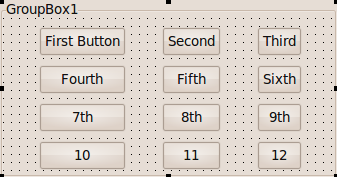
For example if the ClientWidth is 40 pixel bigger than needed, there will be 10 pixel space on the left, right and between each child.
Shrink
Shrinking works similar to enlarging. You can set different modes if there is not enough space for controls. ShrinkHorizontal, ShrinkVertical.
Individual cells
In the above examples all controls were resized the same, each filled the whole cell. A cell is the space in a specific row and column. Normally a control fills the whole cell space. This can be changed with the properties BorderSpacing.CellAlignHorizontal and BorderSpacing.CellAlignVertical.
For example set the BorderSpacing.CellAlignHorizontal of the fifth button to caCenter you will get this:
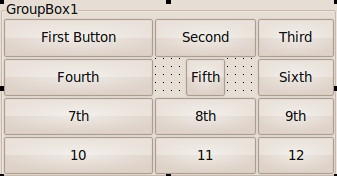
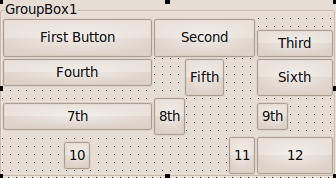
There are four possible values for CellAlignHorizontal/CellAlignVertical:
- caFill: the child control fills the whole width (height) of the cell
- caCenter: the child control uses its preferred width (height) and will be centered in the cell
- caLeftTop: the child control uses its preferred width (height) and will be leftaligned in the cell
- caRightBottom: the child control uses its preferred width (height) and will be rightaligned in the cell
Custom layout with OnResize / OnChangeBounds
Sometimes the LCL layout is not sufficient. The below example shows a GroupBox1 with a ListBox1 and a Memo1. The ListBox1 should fill one third of the space, the Memo1 takes the rest.
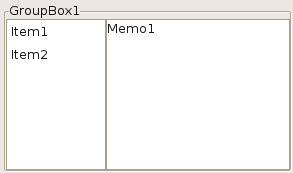
Whenever the GroupBox is resized the ListBox1.Width should be one third. To achieve this set the OnResize event of the GroupBox1 to:
procedure TForm1.GroupBox1Resize(Sender: TObject);
begin
  ListBox1.Width := GroupBox1.ClientWidth div 3;
end;
Common mistake: Wrong OnResize event
Do not put all your resizing code into the Form OnResize event. The Form OnResize event is only called when the Form was resized. The child controls (e.g. a GroupBox1) is resized later, so the GroupBox1.ClientWidth has still the old value during the FormResize event. You must use the GroupBox1.OnResize event to react to changes of GroupBox1.ClientWidth.
Common mistake: Width instead of ClientWidth, AdjustClientRect
The Width is the size including the frame. The ClientWidth is the inner Width without the frame. Some controls like the TPanel paints a further frame. Then you have to use AdjustClientRect. The same example, but instead of a GroupBox1 the ListBox1 is in a Panel1:
procedure TForm1.Panel1Resize(Sender: TObject);
var
  r: TRect;
begin
  r := Panel1.ClientRect;
  Panel1.AdjustClientRect(r);
  ListBox1.Width := (r.Right - r.Left) div 3;
end;
Custom Controls
When you write your own control, you can override and fine tune many parts of the LCL autosizing.
SetBounds, ChangeBounds, DoSetBounds
SetBounds is called when the properties Left, Top, Width, Height, BoundsRect is set or the user calls it directly. SetBounds updates the BaseBounds and BaseParentClientSize, which are used by anchoring to keep the distance. For example loading a Form with TMemo and the lfm contains TMemo's Left and Width, then SetBounds is called two times for the memo. When the user maximizes a window, SetBounds is called for the form, but not for the Memo, keeping the BaseBounds of the Memo. If the Memo is anchored to the right, the Width of the Memo is changed based on the BaseBounds and BaseParentClientSize. Keep in mind that the given aLeft, aTop, aWidth, aHeight might not be valid and will be changed by the LCL before applied. Delphi calls SetBounds more often. SetBounds calls ChangeBounds with KeepBase=false.
ChangeBounds is called whenever the position or size of the control is set, either via the properties or by the layouter of the LCL. SetBounds calls internally ChangeBounds with KeepBase=false, while the LCL layouter calls it with KeepBase=true. Override this for code that might change the preferred size or resizes other controls. Keep in mind that the given aLeft, aTop, aWidth, aHeight might not be valid and will be changed by the LCL before applied. You can call this function.
DoSetBounds is a low level function to set the private variables FLeft, FTop, FWidth, FHeight. Do not call this function, only the LCL calls it. It also updates FClientWidth and FClientHeight accordingly. Override this to update the content layout of the control, for example scroll bars. As always: do not paint here, but call Invalidate and paint in OnPaint or override Paint.
DoAdjustClientRectChange is called by the LCL and the LCL interface, when the ClientRect has changed and the Width and Height were kept.
WMSize exists for Delphi/VCL compatibility. It is called by the LCL interface and on every change of bounds.
AdjustClientRect
The method AdjustClientRect can be overriden by your custom controls and affects Align, ChildSizing.Layout and AnchorSides. It does not affect the meaning of Left, Top and does not affect normal anchoring (for example setting).
When you want to draw your own frame, then the child controls should be aligned within these frames. For example TPanel draws a frame and reduces the client area by overriding the method AdjustClientRect:
  TCustomPanel = class(TCustomControl)
  ...
  protected
    ...
    procedure AdjustClientRect(var aRect: TRect); override;
  ...

procedure TCustomPanel.AdjustClientRect(var aRect: TRect);
var
  BevelSize: Integer;
begin
  inherited AdjustClientRect(aRect);

  BevelSize := BorderWidth;
  if (BevelOuter <> bvNone) then
    inc(BevelSize, BevelWidth);
  if (BevelInner <> bvNone) then
    inc(BevelSize, BevelWidth);

  InflateRect(aRect, -BevelSize, -BevelSize);
end;
AdjustClientRect and Align
AdjustClientRect can be used to reduce the client area used by all autosize operations. For example TPanel uses AdjustClientRect to reduce the client area by the borderwidth:

The Button1 in the screenshot was created with Align=alClient. ChildSizing.Layout is affected too.
When anchoring to a parent via AnchorSides the AdjustClientRect is used too:
Button1.AnchorParallel(akTop,0,Button1.Parent);The Button1's top side is anchored to the top side of the parent's client area. If the AdjustClientRect adds 3 to the Top the Button1.Top will be 3 (3 plus 0).
Own AutoSize
When AutoSize is set to true the control should be resized to the preferred size if possible.
Preferred Size
The new size is fetched by the LCL via GetPreferredSize which calls CalculatePreferredSize, which can be overridden. For example let's write a TQuadrat, which is a TShape, but its height should equal its width:
  TQuadrat = class(TShape)
  protected
    procedure CalculatePreferredSize(var PreferredWidth,
        PreferredHeight: integer; WithThemeSpace: Boolean); override;
  end;
...
procedure TQuadrat.CalculatePreferredSize(var PreferredWidth,
  PreferredHeight: integer; WithThemeSpace: Boolean);
begin
  PreferredHeight:=Width;
end;
The method CalculatePreferredSize gets two var parameters: PreferredWidth and PreferredHeight. They default to 0 which means: there is no preferred size, so the LCL will not change the size. The above function sets PreferredHeight to the current Width. The boolean parameter WithThemeSpace is deprecated and always false.
Important: CalculatePreferredSize must not change the bounds or any other value of the control that can trigger an autosize. Doing so will create a loop.
Computing the PreferredWidth/Height can be expensive. Therefore the LCL caches the result until InvalidatePreferredSize is called for the control. In our example the PreferredHeight depends on the Width, so we must invalidate when the Width changes:
  TQuadrat = class(TShape)
  protected
    ...
    procedure DoSetBounds(ALeft, ATop, AWidth, AHeight: integer); override;
  end;
...
procedure TQuadrat.DoSetBounds(ALeft, ATop, AWidth, AHeight: integer);
begin
  inherited DoSetBounds(ALeft, ATop, AWidth, AHeight);
  InvalidatePreferredSize;
  // Note: The AdjustSize can be omitted here, because the LCL does that after calling DoSetBounds.
end;
The LCL will automatically trigger the autosizing when the bounds have changed, so the example is complete.
The default TWinControl implementation of CalculatePreferredSize queries the widgetset, which might return a preferred width and/or height. Each control can override the CalculatePreferredSize method. For example TImage overrides it and returns the size of the Picture. If no preferred width (height) is available the returned value is 0 and the LCL will keep the current Width (Height). If 0 is a valid size for your control, you must set the ControlStyle flag csAutoSize0x0 (ControlStyle:=ControlStyle+[csAutoSize0x0];). An example is the LCL control TPanel.
AdjustSize
When the preferred size depends on a new property, then every time the property changes the auto sizing must be triggered. For example:
procedure TQuadrat.SetSubTitle(const AValue: string);
begin
  if FSubTitle = AValue then exit;
  FSubTitle := AValue;
  InvalidatePreferredSize;
  AdjustSize;
end;
Reduce overhead with DisableAutoSizing, EnableAutoSizing
Since Lazarus 0.9.29 there is a new autosizing algorithm, that reduces the overhead and allows deep nested dependencies. Up to 0.9.28 DisableAlign/EnableAlign and Disable/EnableAutoSizing worked only for one control and its direct childs.
Each time you change a property the LCL triggers a recompute of the layout:
Label1.Caption := 'A';  // first recompute
Label2.Caption := 'B';  // second recompute
The recompute will trigger events and send messages. To reduce the overhead you can suspend the autosizing:
DisableAutoSizing;
try
  Label1.Caption := 'A';  // no recompute
  Label2.Caption := 'B';  // no recompute
finally
  EnableAutoSizing; // one recompute
end;
The calls of Disable/EnableAutoSizing must be balanced. Only when EnableAutoSizing was called the same time as DisableAutoSizing the autosizing will start.
Since 0.9.29 the Disable/EnableAutoSizing work for the whole form. This means every call of DisableAutoSizing suspends the autosizing for all controls on the same form. If you write your own control you can now use the following:
procedure TMyRadioGroup.DoSomething;
begin
  DisableAutoSizing;  // disables not only TMyRadioGroup, but the whole form
  try
    // delete items ...
    // add, reorder items ...
    // change item captions ...
  finally
    EnableAutoSizing; // recompute
  end;
end;
Which basically means: you do not have to care. Just call Disable/EnableAutoSizing.
Note: this is wrong:
Button1.DisableAutoSizing;
Label1.EnableAutoSizing; // wrong: every control has its own counter
DisableAutoSizing and Form bounds
DisableAutoSizing has another useful effect under asynchronous Window Managers like the ones under Linux. Each time a form is resized or moved the bounds are sent to the widgetset (DoSendBoundsToInterface). Even if the form is not shown the Handle is resized. The window manager often treats these bounds only as proposal, the window manager has its own logic and often only the first bounds sent are used. The second, third or further moves may be ignored. With DisableAutoSizing you can make sure that only the final bounds are sent to the widgetset making the form bounds more reliable.
Example: a button panel
This example combines several of the LCL layout mechanisms to create a panel with three buttons: a Help button to the left and Ok and Cancel buttons to the right. We want the panel to be at the bottom of the form filling the entire width. The buttons and the panel are autosized to fit all fonts and themes.
Step 1: Create the panel and set its Align property to alBottom. Add three TBitBtns.

Set the Kind properties of the BitBtns to show the glyphs. You might need to set GlyphShowMode to gsmAlways to see them on your platform. Set the BitBtn's AutoSize property to True, which will shrink/enlarge the buttons to fit perfectly around the glyphs and text. Depending on your theme and platform you might notice that the buttons have different heights.

Set the Align property of the help button to alLeft and set the other two buttons' Align property to alRight. This will enlarge the buttons vertically and move them to the far left/right. alLeft/alRight has no effect on the width, so the buttons use their preferred width.

The Panel height is still fixed. Now set the panel AutoSize property to True. The panel now shrinks vertically to fit the tallest button.

The Ok button has a short caption, so the button is very small. Set the button's Constraints.MinWidth to 75. The button will now enlarge somewhat.

Now add some space around the buttons. Set the panel's ChildSizing.LeftTopSpacing/RightBottomSpacing/HorizontalSpacing to 6.

Finally clear the Caption of the panel and set its BevelOuter to bvNone.

Scrolling
Some LCL controls like TScrollBox, TForm, TFrame allows to show scrollbars if the child controls do not fit. They inherit the behavior from their ancestor TScrollingWinControl.
On a scrolling control the logical client area can be bigger than the visible client area. The visible client area is ClientRect. It always starts at 0,0 and its width and height is the inner area. For example in a TGroupBox it is the size of the area inside the frame. So the following is always true:
ClientWidth <= Width
ClientHeight <= Height
The logical client area is defined by the method GetLogicalClientRect. By default it is the same as ClientRect. When a child control is anchored to the right side, it uses the logical client area. TScrollingWinControl overrides this method and returns the Range of the scrollbars if they are bigger than the ClientRect. The Range can be set manually or automatically with AutoScroll=true. An example for AutoScroll=true:
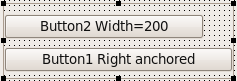
The upper button has a fixed Width of 200. The lower button is anchored to the right side of the panel. Therefore the child controls have a preferred width of 200. Because the panel is bigger than 200 the logical client area is bigger too and the lower button expands.
Now the panel is shrinked, so that the ClientWidth gets lower than 200:
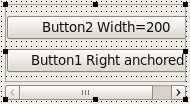
The preferred width is still 200, so the logical client area is now 200 and bigger than the visible client area. The lower button has now a Width of 200 and the panel shows a horizontal scrollbar.
Scroll Position
Changing the Position of a scrollbar does not change the Left, Top of child controls, does not change the logical client area and has no effect on autosizing. The child controls are only virtually moved.
Scrolling and AutoSize
When AutoSize=true the LCL will expand the control to fit all child controls and no scrollbars are needed. If the control can not be expanded, then only the second action of AutoSize is executed: moving the child controls.
Docking
Docking uses the described methods and properties of this page, see Docking.
Splitter
See TSplitter.
TLabel.WordWrap
TLabel.WordWrap changes the behavior of the preferred size of the label. WordWrap=true requires that the Width of the label is fixed, for example by anchoring the left and right size of the label. The preferred height of the label is then computed by breaking the Caption into multiple lines.
DPI auto-adjustment and absolute layout auto-adjustment
Historically the LCL has been utilized mostly to design absolute layouts, despite the huge amount of options which Lazarus offers for flexible layouts, like Align, Anchors, etc, as described on the rest of this article. On top of that, it has also historically ignored the DPI of the target and instead utilized values in pixels to measure the left, top, width and height properties of controls. For desktop platforms and Windows CE this has worked reasonably ok, but with the advent of LCL support for Android this could no longer be ignored. Starts in Lazarus 0.9.31 the LCL can reinterprete the LCL absolute layout in pixels as a flexible grid. There are multiple modes to choose from and they will allow to reinterprete the pixel values as either really absolute, or as in being adjusted for the DPI or as in being considered simply a fraction of the form size.
It is important to note that these new rules affect only controls which are positioned without Align and with the most standard Anchors only.
In the case where the values will be adjusted for DPI, there is a new property: TCustomForm.DesignTimeDPI which should store the DPI value of the system where the form was designed. The positoning values will be expanded when the target DPI is larger then the design time DPI or reduced otherwise. The common value for desktop DPIs is 96 and is the default value given.
property DesignTimeDPI: Integer read FDesignTimeDPI write FDesignTimeDPI;
The way in which the layout is adjusted can be controlled with the property TApplication.LayoutAdjustmentPolicy
 TLayoutAdjustmentPolicy = (
   lapDefault,     // widgetset dependent
   lapFixedLayout, // A fixed absolute layout in all platforms
   lapAutoAdjustWithoutHorizontalScrolling, // Smartphone platforms use this one,
                                            // the x axis is stretched to fill the screen and
                                            // the y is scaled to fit the DPI
   lapAutoAdjustForDPI // For desktops using High DPI, scale x and y to fit the DPI
 );
And the following new methods in TControl allow to force a layout-autoadjustment in a particular control and all its children or to control how particular descendents of TControl react to this:
TControl = class
public
...
    procedure AutoAdjustLayout(AMode: TLayoutAdjustmentPolicy;
      const AFromDPI, AToDPI, AOldFormWidth, ANewFormWidth: Integer); virtual;
    function ShouldAutoAdjustLeftAndTop: Boolean; virtual;
    function ShouldAutoAdjustWidthAndHeight: Boolean; virtual;
LCL-CustomDrawn-Android will call AutoAdjustLayout when the screen rotates, for example.
More details
Many controls override TControl.DoAutoSize to perform the actual auto-sizing.
IMPORTANT: Many Delphi controls override this method and many call this method directly after setting some properties.
During handle creation not all interfaces can create complete Device Contexts which are needed to calculate things like text size.
That's why you should always call AdjustSize instead of DoAutoSize.
TControl.AdjustSize calls DoAutoSize in a smart fashion.
During loading and handle creation the calls are delayed.
This method initially does the same as TWinControl.DoAutoSize. But since DoAutoSize is commonly overriden by descendant components, it is not useful to perform all tests, which can result in too much overhead. To reduce this the LCL calls AdjustSize instead.
When setting AutoSize = true the LCL autosizes the control in width and height. This is one of the most complex parts of the LCL, because the result depends on nearly a hundred properties. Let's start simple:
The LCL will only autosize the Width (Height) if it is free to resize. In other words - the width is not autosized if:
- the left and right side is anchored. You can anchor the sides with the Anchors property or by setting the Align property to alTop, alBottom or alClient.
- the Width is bound by the Constraints properties. The Contraints can also be overriden by the widgetset. For example the winapi does not allow resizing the height of a combobox. And the gtk widgetset does not allow resizing the width of a vertical scrollbar.
Same for Height.
The new size is calculated by the protected method TControl.CalculatePreferredSize. This method asks the widgetset for an appropriate Width and Height. For example a TButton has preferred Width and Height. A TComboBox has only a preferred Height. The preferred Width is returned as 0 and so the LCL does not autosize the Width - it keeps the width unaltered. Finally a TMemo has no preferred Width or Height. Therefore AutoSize has no effect on a TMemo.
Some controls override this method. For example the TGraphicControl descendants like TLabel have no window handle and so cannot query the widgetset. They must calculate their preferred Width and Height themselves.
The widgetsets must override the GetPreferredSize method for each widget class that has a preferred size (Width or Height or both).
Parent.AutoSize
The above described the simple explanation. The real algorithm provides far more possibilities and is therefore far more complex.
Properties / Methods
- Left
- Top
If Parent<>nil then Left, Top are the pixel distance to the top, left pixel of the parent's client area (not scrolled). Remember the client area is always without the frame and scrollbars of the parent. For Delphi users: Some VCL controls like TGroupbox define the client area as the whole control including the frame and some not - the LCL is more consistent, and therefore Delphi incompatible. Left and Top can be negative or bigger than the client area. Some widgetsets define a minimum/maximum somewhere around 10.000 or more.
When the client area is scrolled the Left and Top are kept unchanged.
During resizing/moving Left and Top are not always in sync with the coordinates of the Handle object.
If Parent=nil then Left, Top depend on the widgetset and the window manager. Till Lazarus 0.9.25 this is typically the screen coordinate of the left,top of the client area of the form. This is Delphi incompatible. It is planned to change this to the Left, Top of the window.
Hint: Each time you change Left and Top the LCL moves instantly and recomputes the whole layout. If you want to change Left and Top use instead:
with Button1 do
SetBounds(NewLeft, NewTop, Width, Height);- Width
- Height
The Size in pixels must not be negative, and most widgetsets do not allow Width=0 and/or Height=0. Some controls on some platforms define a bigger minimum constraint in Constraints.MinInterfaceWidth/Height. Instead of sizing a control to Width=0 and/or Height=0, set Visible=false or Parent=nil. During resizing/moving Width and Height are not always in sync with the size of the Handle object.
- BoundsRect
Same as Bounds(Left, Top, Width, Height).
Common newbie mistake:
BoundsRect.Left := 3; // WRONG: common newbie mistakeThis has no effect, because reading BoundsRect is a function. It creates a temporary TRect on the stack. The above is the same as
var
  r: TRect;
begin
  r := BoundsRect; // fetch the bounds
  r.Left := 3;  // change a value on the stack
end; // no change- ClientRect
Left and Top are always 0,0. Width and Height are the visible size in pixels of the client area. Remember the client area is without the frame and without scrollbars. In a scrollable client area the logical client area can be bigger than the visible.
- ClientOrigin
Returns the screen coordinate of the topleft coordinate 0,0 of the client area. Note that this value is the position as stored in the interface and is not always in sync with the LCL. When a control is moved, the LCL sets the bounds to the desired position and sends a move message to the interface. It is up to the interface to handle moves instantly or queued.
- LCLIntf.GetClientBounds
Returns the client bounds of a control. Like ClientRect, but Left and Top are the pixel distances to the control's left, top. For example on a TGroupBox the Left, Top are the width and height of the left and top frame border. Scrolling has no effect on GetClientBounds.
- LCLIntf.GetWindowRect
After the call, ARect will be the control area in screen coordinates. That means, Left and Top will be the screen coordinate of the TopLeft pixel of the Handle object and Right and Bottom will be the screen coordinate of the BottomRight pixel.
- FBaseBoundsLock: integer
Increased/Decreased by LockBaseBounds/UnlockBaseBounds. Used to keep FBaseBounds during SetBounds calls.
- FBaseParentClientSize: TPoint
The Parent.ClientRect size valid for the FBaseBounds. FBaseBounds and FBaseParentClientSize are used to calculate the distance for akRight (akBottom). When the parent is resized, the LCL knows what distance to keep.
- FBoundsRectForNewParent: TRect
When changing the Parent of a control the Handle is recreated and many things can happen. Especially for docking forms the process is too unreliable. Therefore the BoundsRect is saved. The VCL uses a similar mechanism.
- fLastAlignedBounds: TRect
See TControl.SetAlignedBounds for an explanation. In short: It stops some circles between interface and LCL autosizing.
- FLastChangebounds: TRect
Used to stop calling ChangeBounds with the same coordinates. This happens very often.
- FLastDoChangeBounds: TRect
Used to avoid calling OnChangeBounds with the same coordinates. This reduces user defined autosizing.
- FLastResizeClientHeight: integer
- FLastResizeClientWidth: integer
- FLastResizeHeight: integer
- FLastResizeWidth: integer
Used to avoid calling OnResize with the same coordinates. This reduces user defined autosizing.
- FLoadedClientSize: TPoint
During loading many things are delayed and many things are set and worse: in the wrong order. That's why SetClientWidth/SetClientHeight calls are stored and set at end of loading again. This way the LCL can restore the distances (e.g. akRight) used during designing.
- FReadBounds: TRect
Same as FLoadedClientSize, but for SetLeft, SetTop, SetWidth, SetHeight.
- procedure SetBoundsRectForNewParent(const AValue: TRect);
Used to set FBoundsRectForNewParent. See above.
- procedure SetAlignedBounds(aLeft, aTop, aWidth, aHeight: integer); virtual;
As SetBounds but without changing the default sizes.
- procedure SetInitialBounds(aLeft, aTop, aWidth, aHeight: integer); virtual;
A smart version of SetBounds, reducing overhead during creation and loading.
- procedure UpdateBaseBounds(StoreBounds, StoreParentClientSize, UseLoadedValues: boolean); virtual;
Commit current bounds to base bounds.
- procedure SetClientHeight(Value: Integer);
- procedure SetClientSize(Value: TPoint);
- procedure SetClientWidth(Value: Integer);
Exists for Delphi compatibility too. Resizes the control, to get the wanted ClientRect size.
- procedure ChangeBounds(ALeft, ATop, AWidth, AHeight: integer); virtual;
This is the internal SetBounds. Applies constraints, updates base bounds, calls OnChangeBound, OnResize, locks bounds.
- procedure DoSetBounds(ALeft, ATop, AWidth, AHeight: integer); virtual;
This really sets the FLeft, FTop, FWidth, FHeight private variables.
- procedure SetBounds(aLeft, aTop, aWidth, aHeight: integer); virtual;
This is the standard procedure overriden by many Delphi controls. TWinControl overrides it too.
- ignores calls when bounds are locked
- lock the FBoundsRealized to avoid overhead to the interface during auto sizing.
ChangeBounds is not locked this way.
- Function GetClientOrigin: TPoint; virtual;
Screen coordinate of Left, Top of client area.
- Function GetClientRect: TRect; virtual;
Size of client area. (always Left=0, Top=0)
- Function GetScrolledClientRect: TRect; virtual;
Visible client area in ClientRect.
- function GetChildsRect(Scrolled: boolean): TRect; virtual;
Returns the Client rectangle relative to the control's Left, Top. If Scrolled is true, the rectangle is moved by the current scrolling values (for an example see TScrollingWincontrol).
- function GetClientScrollOffset: TPoint; virtual;
Returns the scrolling offset of the client area.
- function GetControlOrigin: TPoint; virtual;
Returns the screen coordinate of the topleft coordinate 0,0 of the control area. (The topleft pixel of the control on the screen) Note that this value is the position as stored in the interface and is not always in sync with the LCL. When a control is moved, the LCL sets the bounds to the wanted position and sends a move message to the interface. It is up to the interface to handle moves instantly or queued.
FAQ
Why does AutoSize not work in the designer properly?
In the designer controls can be dragged around and properties can be set in almost any order. To allow this and avoid possible conflicts, the AutoSizing is not updated on every change at design time.
Why does TForm.AutoSize not work when something changes?
Do I need to call Application.ProcessMessages when creating lots of controls?
Application.ProcessMessages is called by the LCL automatically after every message (e.g. after every event like OnClick). Calling it yourself is only needed if the changes should become visible to the user immediately. For example:
<DELPHI>procedure TFrom.Button1Click(Sender: TObject); begin
 // change width of a control
 Button1.Width := Button1.Width + 10;
 // apply any needed changes and repaint the button
 Application.ProcessMessages;
 // do a lot of things that takes a long time
 ...
 // after leaving the OnClick the LCL automatically processes messages
end;</DELPHI>
When enabling Anchors at runtime the control resizes, does not use the current values. Why?
akBottom means: keep a distance to the bottom side of the parent. The distance to keep is defined by the base bounds. They are set at designtime or by runtime calls of SetBounds or UpdateBaseBounds.
For example: A TListBox (Anchors=[akLeft,aTop]) at designtime has a bottom distance of 100 pixel. And a button to enable/disable the akBottom of the TListBox. Now start the application and press the button to enable akBottom. The 100 pixel distance will be activated, because this was the last time the programmer defined the base bounds of the TListBox. All other resizes were done by the LCL and are irrelevant. The programmers base bounds rules. You can resize the form and the 100 pixel will be kept. In order to use the current bounds as base bounds use:
ListBox1.UpdateBaseBounds(true, true, false);
ListBox1.Anchors := ListBox1.Anchors + [akBottom];
Setting Anchors does not automatically call UpdateBaseBounds, because this would destroy the ability to change properties independently.
Resizing stringgrid columns in form's OnResize event does not work
The Form's OnResize is triggered when the Form's Width, Height, ClientWidth or ClientHeight changes. This is per se independent of TStringGrid. Of course it often happens that both the Form and the TStringGrid are resized. This means using forms OnResize will often work, but not always. A prominent example where it always fails is when the theme is changed and you have a TStringGrid in a TGroupBox in a TForm. When the theme changed the form size is kept, so no Forms OnResize is triggered. But the TGroupBox changed, so the TStringGrid should be resized.
Solution: Use the TStringGrid's OnResize.
Why is TForm.Width equal to TForm.ClientWidth?
Mattias' notes:
"There are historical and technical reasons.
For forms without parent the Clientwidth equals the Width, because the real Width including the frame was not available on Linux ten years ago (at least not reliable on various window managers). I didn't test, but I heard it is now possible with gtk2. The main problem is the autosizing, because this needs the frame sizes before the form is mapped to the screen. It might be, that this is only available after an event, which means that you have to wait for it, which means trouble for ShowModal. Changing this breaks compatibility with a lot of existing LCL code, but for this we added the LCLVersion in the lfm files.
For all other controls the rules is ClientWidth<=Width. The Width is the ClientWidth plus the widget frame. The question is if the scrollbars belong to the frame. I would say yes and it was implemented that way some time ago. Apparently this has changed. See the current cursor problem on synedit."
I get an infinite loop / How to debug autosizing?
Here are some notes, what other users made wrong and how to find out:
Differences to Delphi
For Delphi users: Please read: Difference to Delphi
Overriding a LCL method and triggering a recompute
You override a method and tell the LCL to compute again, even if nothing changed. Check for AdjustSize, Realign, AlignControls, InvalidatePreferredSize. For example:
procedure TMainForm.SetBounds(ALeft, ATop, AWidth, AHeight: integer);
begin
  // This will create an endless loop
  InvalidatePreferredSize;

  // This will create an endless loop too:
  OtherComponent.Left:=10;
  OtherComponent.Left:=20;

  inherited SetBounds(ALeft, ATop, AWidth, AHeight);
end;
Explanation: The SetBounds method is called often, even without changing anything. For example a "Left:=30;" will do so.
Remedy: Check for changes:
procedure TMainForm.SetBounds(ALeft, ATop, AWidth, AHeight: integer);
begin
  if (Left <> ALeft) or (Top <> ATop) or (Width <> AWidth) or (Height <> AHeight) then
    InvalidatePreferredSize;
  inherited SetBounds(ALeft, ATop, AWidth, AHeight);
end;
OnResize/OnChangeBounds conflict with LCL properties
You set bounds that bite the LCL properties. For example a TLabel.AutoSize is true by default. If you set the Label1.Width in an OnResize event, the LCL will recompute, resize the Label1 and call the OnResize again. Start your application in the debugger and reproduce the bug. When it enters the loop, pause the application and see the call stack. If you see one of your events or your methods start searching there. For example:
procedure TMainForm.FormResize(Sender: TObject);
begin
  // if Button1 is anchored or AutoSize=true then the following might create an endless loop:
  Button1.Width:=100;
end;
LCL interface bug, custom widget
Sometimes the LCL interface or your custom control has a bug and undoes the LCL bounds. Compile the LCL with -dVerboseIntfSizing. This will write the communication between LCL and the LCL interface. If a widget does not allow free resizing, it must tell the LCL via the Constraints. Search for SetInterfaceConstraints in the various LCL interfaces and TWSControlClass.ConstraintWidth/Height.
alCustom
You use alCustom. This was only half implemented in earlier Lazarus versions, but some clever programmers used it to create some special effects. Now it is implemented and your program does not work anymore. Please see here what alCustom does: alCustom.
See also
From the Free Pascal wiki, page "Autosize / Layout/zh TW", as it stood on 2020-02-09 after a change by Trev, out of the wiki's dump of 2024-05-26. Copyright stays with the author who wrote it, according to the old wiki's Licensing page. If you have concerns about this material, message the admin.